
-
ORBITER-FORUM will be temporarily closed at 2026-07-23 18:00 UTC while we complete some OF maintenance tasks. The amount of downtime is expected to take up to one hour, but probably less.
You are using an out of date browser. It may not display this or other websites correctly.
You should upgrade or use an alternative browser.
You should upgrade or use an alternative browser.
New Release D3D9Client Development
- Thread starter jarmonik
- Start date

PBR shader is awesome, makes it a lot easier to use free texture libraries for some stuff:
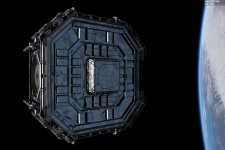
Aluminium foil from here: https://www.texturecan.com/details/25/
20 minutes to put it in, including jpg to dds conversion and some fiddling with the standard orbiter materials.


One note, though. It seems the reflection map reflects the blackness of space, which as far as I understand physics isn't quite as it should be. I'm not sure if they have always done that (this was my first), or if that is a problem specific to this shader.
Aluminium foil from here: https://www.texturecan.com/details/25/
20 minutes to put it in, including jpg to dds conversion and some fiddling with the standard orbiter materials.
One note, though. It seems the reflection map reflects the blackness of space, which as far as I understand physics isn't quite as it should be. I'm not sure if they have always done that (this was my first), or if that is a problem specific to this shader.

- Joined
- Apr 1, 2008
- Messages
- 2,168
- Reaction score
- 663
- Points
- 113
Hi Jarmo,
I've taken a quick look at some of the new features. Here my comments:
Other than that I haven't found enough time for more in-depth tests, but as always:
Nice work ?
[1] see Attachment
[2]...and maybe add a bubble-help popup to inform the user about this.
I've taken a quick look at some of the new features. Here my comments:
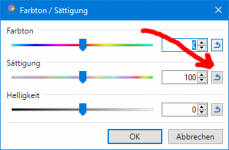
- It would be nice to have [reset to default] buttons (for each slider) on the "Graphic controls" pane (like paint.NET dialogs have them[1] for example).
- If I am not mistaken, some of those sliders are only effective when the "Light Glow" post processing is enabled, right? It might be nice to disable them[2] if that's not the case.
- I took the liberty to update/unify the project files

Other than that I haven't found enough time for more in-depth tests, but as always:
Nice work ?
[1] see Attachment
[2]...and maybe add a bubble-help popup to inform the user about this.
Attachments

Last edited:
- Joined
- Mar 28, 2008
- Messages
- 2,707
- Reaction score
- 881
- Points
- 128
That is actually correct, mostly. More reflective a metal is, less color it has of it's own. But, I'll still have to make some tests...One note, though. It seems the reflection map reflects the blackness of space, which as far as I understand physics isn't quite as it should be. I'm not sure if they have always done that (this was my first), or if that is a problem specific to this shader.
Here's a video of a heat shield separation form Mars 2020 rover, notice the black reflection. https://www.orbiter-forum.com/threads/nasas-mars-2020-rover.31356/post-577840
EDIT: One thing should be noted in our roughness map is that it's actually inverted 1.0 is smooth/glossy and 0.0 is rough. That would make it actually a smoothness or a gloss map. In a typical roughness map 0.0 is smooth/glossy and 1.0 is rough. So, some attention is required there.
Last edited:

n72.75
Seize the means of computation
Orbiter Contributor
Addon Developer
Tutorial Publisher
Donator
- Joined
- Mar 21, 2008
- Messages
- 2,874
- Reaction score
- 1,718
- Points
- 128
- Location
- Saco, ME
- Website
- mwhume.space
- Preferred Pronouns
- he/him
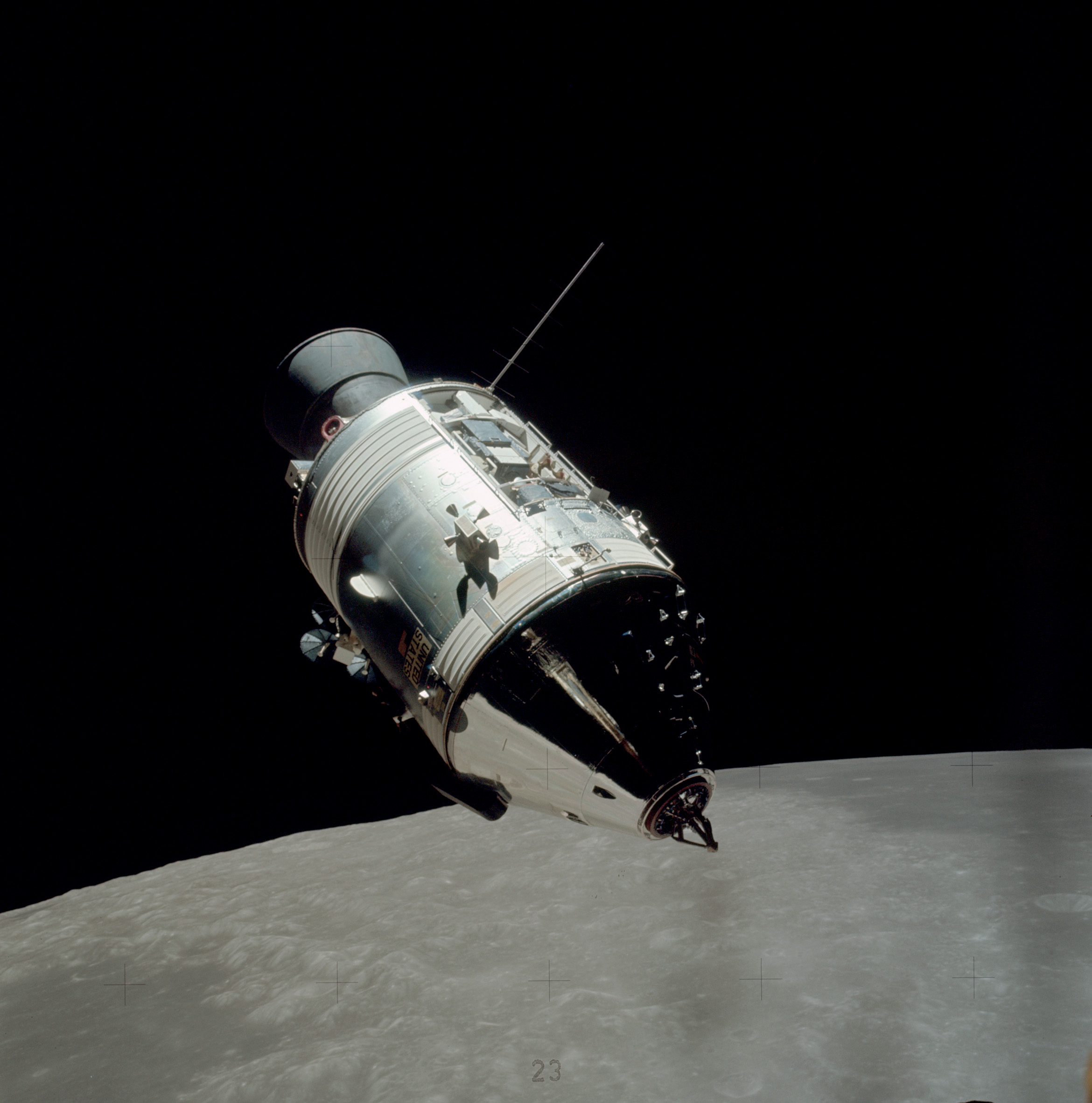
Here's another good example of reflecting space:

4throck
Enthusiast !
- Joined
- Jun 19, 2008
- Messages
- 3,489
- Reaction score
- 1,012
- Points
- 153
- Location
- Lisbon
- Website
- orbiterspaceport.blogspot.com
It should reflect the full scene. As you can see on the Apollo photo above, it reflects the Moon, the LM and black space.
- Joined
- Mar 28, 2008
- Messages
- 2,707
- Reaction score
- 881
- Points
- 128
I suppose there could be somekind of conflict that might feed incorrect data to emission material, ambient light could also be the source. Which one it is or is it something else.Now that I have taken a closer look at things, it looks like it applies a uniform lighting to all parts of the mesh, ignoring shading completely. I've attached a screenshot that shows this. It looks like it has an emissive setting applied to it but it doesn't.
Could you find the following line from Metalness.fx (it's approximately somewhere near line 278)
Code:
// Combine diffuse terms
float3 zD = cDiff.rgb * fA * LightFX(cSun * fR * dLN + cDiffLocal + cAmbient) + (cDiff.rgb * gMtrl.emissive.rgb) + cE;
And change it to by removing the emission terms
Code:
float3 zD = cDiff.rgb * fA * LightFX(cSun * fR * dLN + cDiffLocal + cAmbient) + cE;It that doesn't work then remove the cAmbient term
Code:
float3 zD = cDiff.rgb * fA * LightFX(cSun * fR * dLN + cDiffLocal) + cE;The main problem with additional env-cams is that how to properly configure them. A configuration file is a possibility but it would require to manually type a lot of mesh group IDs into the file. I was hoping to create an editor that would allow to do the thing visually but I just don't have the time for that. That could be relatively easy job for someone else.
- Joined
- Mar 28, 2008
- Messages
- 2,707
- Reaction score
- 881
- Points
- 128
There is a "Full Scene" option in D3D9 Configuration and it's set to "Planet Only" by default. In most cases it's sufficient enough.It should reflect the full scene. As you can see on the Apollo photo above, it reflects the Moon, the LM and black space.
- Joined
- Feb 4, 2008
- Messages
- 9,758
- Reaction score
- 1,028
- Points
- 203
Going down to the third option eliminates the emissivity issue but produces this. As far as typing mesh group IDs, how about making use of mesh group resource file created by the Orbiter SDK included meshres.exe file? It takes a mesh file and spits out a standard C++ header file (*.h) that has all of the mesh group labels indexed by their mesh group IDs.
Attachments

- Joined
- Mar 28, 2008
- Messages
- 2,707
- Reaction score
- 881
- Points
- 128
So, the cAmbient was the source ? The Earth glow is a part of it. The "Glow" material you mentioned earlier in not in use and it has nothing to do with this. There might be a problem with environment maps and if that's the case it may have existed a long time.Going down to the third option eliminates the emissivity issue but produces this.
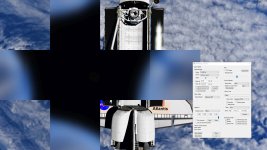
Could you check in a D3D9DebugControl after pressing ">>>" to see the extended page. In a "Scene Debugger" section select "Display env map for level: "Blur 4". Is the cube-map all white or heavily blurred Earth as it should be ?
- Joined
- Feb 4, 2008
- Messages
- 9,758
- Reaction score
- 1,028
- Points
- 203
It looks alright to me. Here's the D3D9Client GC file:
Code:
CONFIG_VERSION 3
; =============================================
MESH SSU/Orbiter
SHADER Metalness
; ---------------------------------------------
MATERIAL 1
AMBIENT 0.000000 0.000000 0.000000
DIFFUSE 1.000000 1.000000 1.000000 1.000000
EMISSION2 0.000000 0.000000 0.000000
GLOW 0.000000
; ---------------------------------------------
MATERIAL 2
AMBIENT 0.000000 0.000000 0.000000
ROUGHNESS 0.950000
METALNESS 1.000000
GLOW 0.129412
Attachments
Last edited:
Say, is the specular power in the debug controls supposed to be the same as in the .msh? Because if I adjust it so it looks good, then save it in the .msh material, it doesn't seem to be the same result at all...
Following up on this because it's really bothering right now. Pretty sure it's not a bug but that I have some misconception and I'm doing something wrong, so a bit of clarification would be great.
The focus here is the aluminium foil. It's got a diffuse map, a narmal map and a roughness map, but no specular map, beause I figured it's uniform enough ot not need one, but then the specularity isn't quite as I expected it to work.
Here's what it looks like if I set a white specular color and a power of 2.5 in the (old) PBR shader:
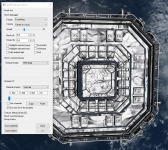
This looks about the way I want it, so I set these properties (including all the others) in the material of the .msh file. But the result looks like this:
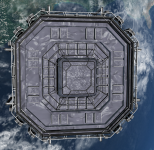
When I go to the debug controls to edit those materials, they are shown as loaded from the .msh file, but it looks like they are not applied. If I edit the specular power, the whole look immediately changes, and I can set it back to the old value (2.5) and the result is as it should be (i.e. different to what the material looked like when it loaded in). What am I missing here?
Here's the material definition from the .msh, if that is any help:
If I save the settings in debug control, this is produced:
So the specular settings are identical. If I load the sim with the D3D9 cfg in place, everything works. But the problem is a bit that I would really like to have those materials applied by mesh, not by vessel, since the mesh might appear in multiple vessels.
Since reflectivity and roughness are both applied as intended, I guess the takeaway here is that if I want that, the PBR shader ignores the orbiter .msh settings and either takes the values from the cfg file or from the maps. Which would be a bit confusing, because it totally does respect the diffuse and ambient color settings. Is this intended behaviour?
The focus here is the aluminium foil. It's got a diffuse map, a narmal map and a roughness map, but no specular map, beause I figured it's uniform enough ot not need one, but then the specularity isn't quite as I expected it to work.
Here's what it looks like if I set a white specular color and a power of 2.5 in the (old) PBR shader:
This looks about the way I want it, so I set these properties (including all the others) in the material of the .msh file. But the result looks like this:
When I go to the debug controls to edit those materials, they are shown as loaded from the .msh file, but it looks like they are not applied. If I edit the specular power, the whole look immediately changes, and I can set it back to the old value (2.5) and the result is as it should be (i.e. different to what the material looked like when it loaded in). What am I missing here?
Here's the material definition from the .msh, if that is any help:
Code:
MATERIAL ThermalCoating
0.7 0.7 0.796 1
0.9 0.9 0.9 1
1 1 1 1 2.5
0 0 0 0
If I save the settings in debug control, this is produced:
Code:
CONFIG_VERSION 3
; =============================================
MESH space_station_pack\JunctionSquare
SHADER PBR-Old
; ---------------------------------------------
MATERIAL 12
SPECULAR 1.000000 1.000000 1.000000 2.500000
So the specular settings are identical. If I load the sim with the D3D9 cfg in place, everything works. But the problem is a bit that I would really like to have those materials applied by mesh, not by vessel, since the mesh might appear in multiple vessels.
Since reflectivity and roughness are both applied as intended, I guess the takeaway here is that if I want that, the PBR shader ignores the orbiter .msh settings and either takes the values from the cfg file or from the maps. Which would be a bit confusing, because it totally does respect the diffuse and ambient color settings. Is this intended behaviour?
4throck
Enthusiast !
- Joined
- Jun 19, 2008
- Messages
- 3,489
- Reaction score
- 1,012
- Points
- 153
- Location
- Lisbon
- Website
- orbiterspaceport.blogspot.com
You should change your textures to use the values coming from the debugger. Convert the numbers to 0-255 and edit levels as needed...
This will make your textures the same across different meshes.
As I mentioned before, try with test meshes if needed. Texture with a gradient and check what values work.
Orbiter default material values need to remain compatible with the inline render.
This will make your textures the same across different meshes.
As I mentioned before, try with test meshes if needed. Texture with a gradient and check what values work.
Orbiter default material values need to remain compatible with the inline render.
- Joined
- Mar 28, 2008
- Messages
- 2,707
- Reaction score
- 881
- Points
- 128
I try to explain what's going on here. Also you should check the D3D9GraphicsGuide in /OrbiterSDK/Doc
First of all, the client is designed to run meshes and models created for the DX7 inline engine. Therefore, the way that the client will understand a Specular color is tied to a DX7 behavior. A Modern PBR pipelines do understand the specular slightly in a different way than a DX7. What a typical PBR pipelines mean by "Specular" is in our case called "Reflectivity" since the the word "Specular" is already reserved for compatibility. So, if you have a "Specular" texture map designed for modern PBR pipeline it should be assigned for D3D9Client as reflection map <*_refl.dds>
The second thing that should be noted is that "roughness" and "specular.power" are basically one and the same thing using a different scales. If you have a "roughness" texture map and you manipulate a specular power setting then it does create a confusion for the renderer of which one to use. This could explain the sudden jumps in appearance you have described.
Texture maps don't need to be the same size. So, if you have constant color "Reflectivity" you can simply assign 4x4 pixel miniature texture to a mesh containing the color you want.
First of all, the client is designed to run meshes and models created for the DX7 inline engine. Therefore, the way that the client will understand a Specular color is tied to a DX7 behavior. A Modern PBR pipelines do understand the specular slightly in a different way than a DX7. What a typical PBR pipelines mean by "Specular" is in our case called "Reflectivity" since the the word "Specular" is already reserved for compatibility. So, if you have a "Specular" texture map designed for modern PBR pipeline it should be assigned for D3D9Client as reflection map <*_refl.dds>
The second thing that should be noted is that "roughness" and "specular.power" are basically one and the same thing using a different scales. If you have a "roughness" texture map and you manipulate a specular power setting then it does create a confusion for the renderer of which one to use. This could explain the sudden jumps in appearance you have described.
I would also prefer for the configurations to be tied to a mesh like <mesh_name>.cfg but the problem is that the client doesn't always get the file name for a meshes. If a mesh is load using oapiLoadMeshGlobal() then a client does get the file name but if oapiLoadMesh() is used instead then the name isn't forwarded for a client. About 50% of addons use the first one and another 50% the second one. The lack of mesh file name has been a show-stopper for some features we have planned. In a case when we don't have the name we need to rely on vessel class name and mesh index. That's not exactly very reliable.But the problem is a bit that I would really like to have those materials applied by mesh, not by vessel, since the mesh might appear in multiple vessels.
Texture maps don't need to be the same size. So, if you have constant color "Reflectivity" you can simply assign 4x4 pixel miniature texture to a mesh containing the color you want.
Yes, texture map and additional D3D9 specific configuration will override settings from a mesh file. That should apply everything including "Diffuse", "Ambient", "Emission" material properties.the PBR shader ignores the orbiter .msh settings and either takes the values from the cfg file or from the maps. Which would be a bit confusing, because it totally does respect the diffuse and ambient color settings. Is this intended behaviour?
Huh, that's weird... From what I observed reflectivity and roughness control how the general surrounding scene is reflected, while specular color and power specifically control how active lightsources are reflected. The effect of both is visually quite different, and I have seen them working in combination quite well on some materials.The second thing that should be noted is that "roughness" and "specular.power" are basically one and the same thing using a different scales.
In fact, fiddling around with it a bit paying attention to that aspect, it seems like roughness has an inverted effect on direct lightsources. High roughness means the scene is reflected more clearly, but the sun is barely being reflected at all.
That much is clear. I'm using 2x2, actually, works without a hitch.Texture maps don't need to be the same size. So, if you have constant color "Reflectivity" you can simply assign 4x4 pixel miniature texture to a mesh containing the color you want.
That is also clear. I merely expected it to fall back to the .msh definitions for shared properties if neither was provided, which seems to be the case for diffuse and ambient color, but not specular color and power. But after what you wrote, I guess that's because a reflection and roughness map was provided. It's just that if I go and fiddle with specular options, reflectivity and roughness in the debug panel, I can clearly see them both working at the same time, and the result is overall better, so it's a bit of a bummer that specularity is turned of on load if reflectivity and roughness are provided.Yes, texture map and additional D3D9 specific configuration will override settings from a mesh file. That should apply everything including "Diffuse", "Ambient", "Emission" material properties.
Last edited:
- Joined
- Mar 28, 2008
- Messages
- 2,707
- Reaction score
- 881
- Points
- 128
so it's a bit of a bummer that specularity is turned of on load if reflectivity and roughness are provided.
Actually, it's not turned off. It's OK to use specular to control sunlight reflections and combination of (roughness + reflectivity) to control environment reflections. This mode requires either a specular texture map or specular material in the d3d9 "configuration" file.
- Joined
- Mar 28, 2008
- Messages
- 2,707
- Reaction score
- 881
- Points
- 128
Yes, it is inverted and sadly it's too late to do much about it. I can change the material property name to "Smoothness" in the material editor but the texture identifier "*_rghn.dds" remains. Smoother material makes (should make) the sun reflection smaller but more intense in strength. The lack of "strength" or "intensity" in sunlight reflection is what triggered the development of new shaders.In fact, fiddling around with it a bit paying attention to that aspect, it seems like roughness has an inverted effect on direct lightsources. High roughness means the scene is reflected more clearly, but the sun is barely being reflected at all.
- Joined
- Mar 28, 2008
- Messages
- 2,707
- Reaction score
- 881
- Points
- 128
Any update on my issue with the Metalness shader?
I noticed from the screen shot that the blur is not blurry enough. Likely a result from the higher map resolution. This problem has been fixed. The reason behind "all emissive" issue is still unknown. I don't see anything really wrong in the shuttle rendering behind the reflection map in your screen shot. I am working on the Metalness shader and a new shader using a reflection map as well. I'll upload a new version as soon as I am able.
Similar threads

- Sticky
- Replies
- 6
- Views
- 10K

- Replies
- 10
- Views
- 4K


- Replies
- 1
- Views
- 4K


- Replies
- 7
- Views
- 4K