Project Blender Mesh Tools add-on

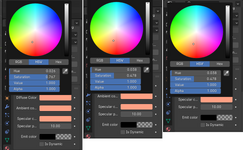
I set the Diffuse color and used the Eyedropper to set the Ambient and Specular colors, but the Diffuse color has different numerical data for the Hue and Saturation. Why does it happen?:

Colors.png
 
Is it possible that the area from which you pick the color with the color picker is not a single color but has several shades and you pick a different one?

What happens if you move the mouse to an already defined color in the color selection window and press CTRL-C and then move the mouse to the other color you want to change and copy it there with CTRL-V?
 
Is it possible that the area from which you pick the color with the color picker is not a single color but has several shades and you pick a different one?
Actually I don't know. I just created a new material, chose the diffuse color and used the eyedropper to copy the color for the ambient and specular.
What happens if you move the mouse to an already defined color in the color selection window and press CTRL-C and then move the mouse to the other color you want to change and copy it there with CTRL-V?
The result is almost the same as after using the eyedropper.

Visually all these three colors look the same, so it's not a problem. I'm just interested why it happens.
 
I tested it myself too. It shows different RGB and HSV values for the diffuse color. Only the HEX values are all the same. No idea why that is. The colors are definitely all the same.
 
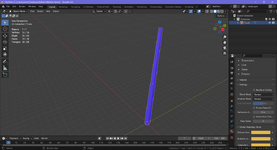
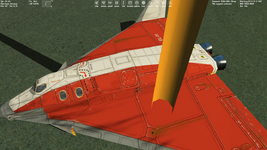
An interesting thing happens I don't understand. Blender says that normals are outer (blue color), but Orbiter displays them like they are inner:

trunk.pngorbiter.png

I flip normals in Blender, they become red, and looks correctly in Orbiter. Other objects look correctly in Orbiter with "blue" normals in Blender. BLEND file is attached.
 

Attachments

Blue are the correct normals red the wrong. Orbiter renders both almost the same and have problems only on some lighting conditions.
 
Hi, I need some help (I started texturing).

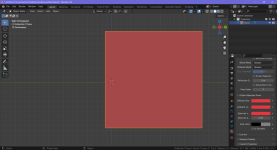
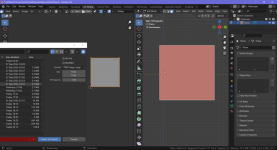
I have a mesh (just a plane), assigned a new material to it, set color on the "Orbiter Materials Panel":

Без імені4.png

So, I'd like to add some texture on this plane and see it in game on the red background color that I set on the "Orbiter Materials Panel". I make UV map for this mesh, and export UV layout as a PNG picture with "Fill Opacity = 1":

Без імені5.png

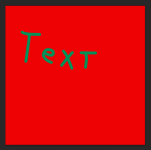
I open the PNG in Photoshop, paint some text, and save it as DDS (DXT1):

Без імені6.png

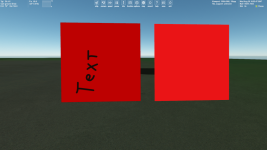
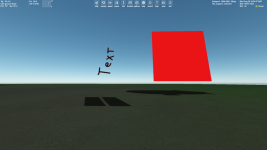
But in game the red color isn't the same as in a similar mesh (right) without texture. And the text color isn't green:

Без імені7.png

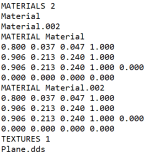
Lines from my MSH file:

Без імені8.png

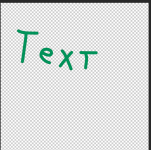
I'm thinking about a texture in DXT 5 format with transparent background:

Без імені9.png

But get the following:

Без імені10.png
 
Actually I understand why my text color isn't green. That's because the color in a MSH file works like a color filter, so I should set white to see texture color correctly.

ADDED: Sorry, I found a solution.
 
Last edited:
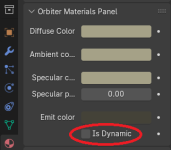
Sorry, does anyone know what this option does?:

Без імені.png
 
I think it is for declaring textures as dynamic, so that they can be used for painting during runtime. Usually, textures are stored on the GPU compressed, this feature allowed to store the textures in RAM and use Windows GDI calls for painting.
 
I was going to mention a small bug I met before and now I checked it. It's non-critical, of course, but maybe it will be fixed or just useful for developers. So, using the "Mirror" command in the mouse right click context menu leads to wrong normals in Orbiter, but they're displayed correct in Blender (or maybe that's the Blender issue, I don't know).

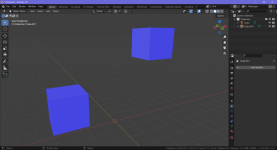
I created two cubes, selected one in "Object Mode", then mouse right click, choose "Mirror" and "Z Global", for example. The normals of both cubes are the same (blue), but in game the cube that was mirrored has wrong normals:

1.png2.png

The "Mirror Modifier" works correctly, so I just don't use the "Mirror" command in the mouse right click context menu.
 
Last edited:
Blender 4.2 LTS support.

I have tested this with version 4.2.5 and it seems to be working. I cannot do extensive testing, so if you run into issues post here and I'll take a look. Earlier versions of 4.2 did behave oddly, so make sure you are on 4.2.5 or later.

I have not tested this with 4.3 which is now available. My intention is to make sure this works with 4.2 for as long as that is the latest LTS release. I will add support for later version (4.3 etc.) provided that does not break 4.2 support.

This release will not work with earlier versions of Blender.
 
Thanks for the update. This is a very important and useful add-on. I haven't tried Blender except the 4.0.2 yet (I'm pretty satisfied with it). Are there any improvements that could be important for Orbiter? I just haven't used Blender before I started making simple meshes for Orbiter.
 
Thanks for the update. This is a very important and useful add-on. I haven't tried Blender except the 4.0.2 yet (I'm pretty satisfied with it). Are there any improvements that could be important for Orbiter? I just haven't used Blender before I started making simple meshes for Orbiter.

I currently use 4.3 for getting into Blender and I have a much easier start as earlier, so I suspect there are some usability changes. but I could be wrong
 
I'm not aware of any changes between 4.0 and 4.2/3 that would impact Orbiter development greatly. I mostly wanted to get 4.2 working because its an LTS release so is a good baseline to target for support.
 
Last edited:
Just a quick update. I am seeing some issues in how normals are handled in Blender 4.1 and 4.2 with the latest version of the plug in. Its still available as pre-release, but if you want the latest stable, use Blender 4.0 and the latest 2.1.x release of the Blender tools plugin. I'll continue to look at this and see if I can figure out what is going on.
 
I've removed the pre-release tag from the 2.2.0 release. Issues I was seeing with normals were present in Blender itself and were not created by the plugin. Blender 4.1 made some significant changes to normals and object smoothing.

Blender 4.3 also appears to be working and is probably the version I will use going forward. As always, if you have any issues let me know, I'll take a look.
 
I tested it on Blender 4.3.2. There are differences when building the mesh, so it is not the same like in Blender 4.0.2. But it seems that the mesh works. Also I noticed that when importing a mesh, round meshgroups are not smoothed, they are faceted
 
Last edited:
I made a test (Blender 4.0.2 with the previous version of the tool) in Orbiter 2024. It's related to this:
I'm interested what is the exact quantity limit for elements of a mesh group in Orbiter 2024 and what it refer to (vertices/edges/faces/triangles)?
I have 8 identical mesh groups. Every group has identical 400 parallelepipeds. Every parallelepiped has 8 vertices, 12 edges, 6 faces (just ordinary parallelepiped):
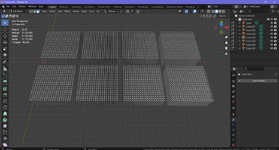
Без імені.png

There're issues in game, some parallelepipeds aren't displayed:
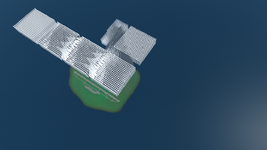
Без імені2.png

Blender says that there're totally 38400 triangles. It's just twice the number of faces (since every face consists of two triangles), namely 38400=2*19200. Maybe there's a restriction for triangles in a MSH file, it might be like 32768 triangles, I'm not sure, but this assumption corresponds to the number of visible parallelepiped on the 2nd picture.

But I have MSH files that contains much more, than 32768 triangles, and they don't demonstate such the issues, so I don't know what the problem is.

I attach BLEND and MSH file.

 

Attachments

Back
Top