New Release D3D9Client Development

Hey so I recently got back into orbiter after a 2 year break, downloaded it again, got d3d9 client and I get no sky textures on earth, the sky is just black even tho its day & the sun is right above me
Don't have this issue with default DX7 client & I don't remember this happening before, pls help
I did a complete reinstall of everything and it still didn't fix the problem
Also I do run it with orbiter_ng.exe, not orbiter.exe

Orbiter version: 28 Aug 2016 V.160828
D3d9 client version: R4.25 (r1446)
Pics below
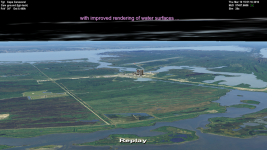
orbiter_2021_09_20_05_11_31_629.pngorbiter_2021_09_20_05_11_37_900.png
 
Hey so I recently got back into orbiter after a 2 year break, downloaded it again, got d3d9 client and I get no sky textures on earth, the sky is just black even tho its day & the sun is right above me
Orbiter version: 28 Aug 2016 V.160828
D3d9 client version: R4.25 (r1446)
Do you have DirectX mods installed like "ENB Series" installed ? Very common source of problems.
Have you tried an older version of the client ?
Have you tried to re-install June 2010 DirectX runtimes ?
 
D3D9Client is now integrated to Orbiter repository (d3d9client branch) and D3D9Client git repo is in a read-only mode for now. Likely to be closed later on.
 
Do you have DirectX mods installed like "ENB Series" installed ? Very common source of problems.
Have you tried an older version of the client ?
Have you tried to re-install June 2010 DirectX runtimes ?
Didn't have any mods installed so I tried an older version of d3d9 client (r1436) and reinstalled 2010 dx runtimes, no idea which one fixed it but everything seems to be working now, I have the lovely blue sky back finally, thanks
 
Do you have DirectX mods installed like "ENB Series" installed ? Very common source of problems.
Have you tried an older version of the client ?
Have you tried to re-install June 2010 DirectX runtimes ?
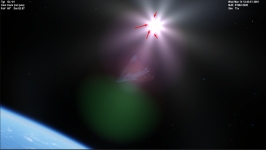
Also 1 more question, is there anyway to remove this triangular pattern on the glare near the sun and make it more circular? (Where the red arrows are pointed)Screenshot_1.png
 
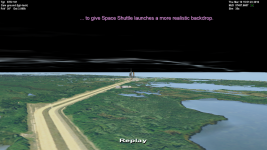
Following from Dave S' request to retire base.cfg in OpenOrbiter I have a potential feature request for the handling of night textures in the D3D9Client.

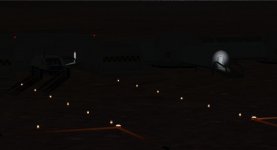
At present, listing a texture in config\base.cfg, and again against the relevant mesh in the surface base's config file, will display a night texture if texture.dds has a corresponding texture_n.dds.

This has been a way to create night lighting effects on bases without adding lights:

3.1_Gusev_night.jpg

Would it be possible for the d3d9 client to handle the _n texture extension to activate textures at night? It would be great to eliminate the need for base.cfg editing instructions.
 
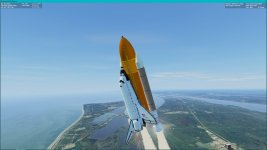
Possible game-breaking bug with the shadows discovered: I always wondered why I lost 40 FPS in the SSU STS-114 pre-launch scenario but not in the Launch Test scenario. So today I decided to investigate the problem in great detail to finally pin down the offending issue. After going through everything that differed in the two scenarios, I finally found it: The time of day. The Launch Test scenario is set pre-dawn in March so no shadows being rendered while the STS-114 scenario is mid-morning in July so plenty of shadows to render.

So I decided to halt the countdown in the Launch Test scenario and time-accelerate until the sun rose and the shadows appeared and the same FPS reduction I had observed in the STS-114 launch scenario appeared right on cue. And I have been able to replicate this on command several times now. The game-breaking bug is not with the shadows themselves but rather that they don't seem to respond to the ShadowMapSize parameter in the D3D9Client.cfg file, so you can't tweak them to have such an impact on performance. I tried three different settings, 4096, 2048 and 1024, and all three had the exact same performance impact, no change what so ever, not even a few FPS. And I have checked that D3D9Client.cfg was unaltered following each run so it didn't load old settings.

Clean installation of Orbiter 2016, D3D9Client R4.25 and SSU, nothing else.
 
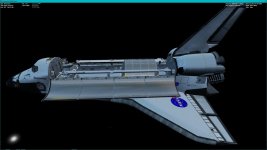
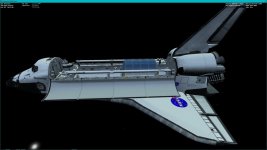
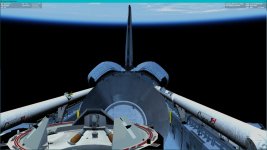
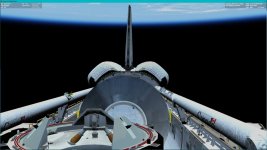
Is there anyway to completely disable the metallic sheen that's applied to meshes that use the Metalness shader? I have attached two screenshots of the SSU orbiter, the first one is with the Metalness shader and the second is with the PBR shader. As you probably can tell, there's an unnatural metallic sheen to everything with the Metalness shader even with Metalness and Smoothness set to 0.000. I'd like to see a hybrid shader that incorporates the reflections of the Metalness shader for metallic objects, and the realistic lighting of the PBR shader. Maybe it could be accomplished by a check if Metalness is anything but 0.000?
 

Attachments

  • Orbiter_Metalness.jpg
    Orbiter_Metalness.jpg
    60.5 KB · Views: 22
  • Orbiter_PBR.jpg
    Orbiter_PBR.jpg
    60.5 KB · Views: 22
Is there anyway to completely disable the metallic sheen that's applied to meshes that use the Metalness shader?
The sheen is caused a blue ambient (indirect) light coming from the Earth. The shuttle is likely over open ocean at the moment. I can't really tell how it's supposed to look like under those conditions.
 
The sheen is caused a blue ambient (indirect) light coming from the Earth. The shuttle is likely over open ocean at the moment. I can't really tell how it's supposed to look like under those conditions.
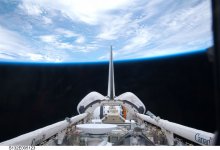
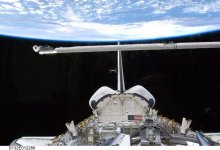
I have attached two good photos from STS-132 that has the orbiter in similar ambient light conditions and similar attitude (heads-down, engines pointing in the direction of travel). Notice the soft Earthshine. Nothing harsh like used in the Metalness shader.
 

Attachments

  • s132e005123.jpg
    s132e005123.jpg
    69.9 KB · Views: 22
  • s132e012289.jpg
    s132e012289.jpg
    94.2 KB · Views: 22
  • Orbiter_Metalness_2.jpg
    Orbiter_Metalness_2.jpg
    73.9 KB · Views: 23
  • Orbiter_PBR_2.jpg
    Orbiter_PBR_2.jpg
    76.8 KB · Views: 21
I have attached two good photos from STS-132 that has the orbiter in similar ambient light conditions and similar attitude (heads-down, engines pointing in the direction of travel). Notice the soft Earthshine. Nothing harsh like used in the Metalness shader.
Cameras usually have a build in white point calibration so, a light bluish tint might not show. Also in the photos the Earth in brighter/whiter than in the screen shots so maybe that's the source of the problem. I made a test under a default conditions and I couldn't get stock Atlantis with metalness shader as blue as in your screen shot. I can tweak the indirect light towards white but forcing it to white would undermine the whole indirect light model.
 
In those photos there's a lot of cloud cover, and (white) clouds reflect much more light than the (blue) ocean. Under these conditions earthshine might be close to white.
My guess is that the Orbiter understimates cloud cover reflection. Some tweaking towards white (just desaturate it a bit) might work well.
 
Cameras usually have a build in white point calibration so, a light bluish tint might not show. Also in the photos the Earth in brighter/whiter than in the screen shots so maybe that's the source of the problem. I made a test under a default conditions and I couldn't get stock Atlantis with metalness shader as blue as in your screen shot. I can tweak the indirect light towards white but forcing it to white would undermine the whole indirect light model.
These are my graphics settings for D3D9Client:
Code:
GFXIntensity = 1
GFXDistance = 0.8
GFXThreshold = 1.09804
GFXGamma = 1
GFXSunIntensity = 2
GFXLocalMax = 0.0470588

And this is the Earth.atmo.cfg:
Code:
Red = 0.6517
Green = 0.55
Blue = 0.4816
RWaveDep = 2.048
MWaveDep = -0.96
ScaleHeight = 7.17241
DepthClamp = 0.99875
Exposure = 1.6025
TGamma = 1.0008
OutScatter = 0.6348
InScatter = 1.7585
RayleighPhase = -0.5085
MiePower = 0.5
MiePhase = 0.999
Aux1 = 0.2415
Aux2 = 0.440896
Aux3 = 0.94
AGamma = 0.3
HazeClr = 0.765
HazeIts = 1.8

It's not really the tint that's the problem but the sheen, that there's a metallic reflection where there should none. Ever looked close at an painted aluminium can? If so, then you know what I'm talking about here, that there's a matt finish/reflection in the paint. This is of course well and good for something made of an metallic alloy. The orbiter of course isn't clad in a metallic TPS but something that approaches soft goods. There's not supposed to be any reflections of the thermal blankets and RCC. The tiles when new are a bit reflective as the top coating is a Reaction Cured Glass (RCG) while the substrate is made of silica.

Maybe a better example is a silk or satin fabric, those approaches what the current D3D9Client Metalness shader applies which is wrong. Both the AFRSI (quilted blankets used mostly on the OMS pods and part of the orbiter fuselage sides) and the FRSI (smooth blankets used on low temperature areas in place of AFRSI) have smooth but matt finishes.
 
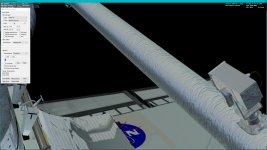
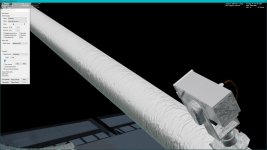
This is a screenshot of the SRMS with the Metalness shader with Smoothness set to 0.000 and Metalness also set to 0.000. It's a bit hard to see but step back a bit and you can make out the the reflection of Earth in the blankets. This is is of course wrong, the SRMS MLI blankets are as matt and non-reflective as soft goods come!

Please tell me if I'm wrong here. Maybe I should stick to the PBR shader for the orbiter.
 

Attachments

  • SRMS_metalness_reflection.jpg
    SRMS_metalness_reflection.jpg
    78.8 KB · Views: 11
Last edited:
Let's check if the sheen really comes from the Ambient (indirect) light. So, could you add line 266 "cAmbient = length(cAmbient)" in metalness.fx and see if the sheen has disappeared.

Code:
    // Apply base ambient light
    cAmbient = max(cAmbient, gSun.Ambient);
    cAmbient = length(cAmbient);
#else
 
Let's check if the sheen really comes from the Ambient (indirect) light. So, could you add line 266 "cAmbient = length(cAmbient)" in metalness.fx and see if the sheen has disappeared.

Code:
    // Apply base ambient light
    cAmbient = max(cAmbient, gSun.Ambient);
    cAmbient = length(cAmbient);
#else
Added line 266 to Metalness.fx and this is the result.
 

Attachments

  • SRMS_metalness_modified.jpg
    SRMS_metalness_modified.jpg
    63.8 KB · Views: 24
I have uploaded a new version. Could you check if the sheen and frame rate issues are fixed.
 
Frame rate issue with shadows: Not fixed. Getting the same FPS no matter what ShadowMapSize in D3D9Client.cfg is set to.
Metalness shader issue: Fixed.
 
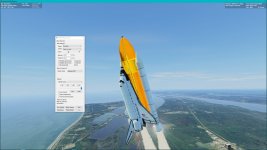
Another issue: I decided to change the SRBs over to the Metalness shader (they're D6AC steel tubes after all) but only the aft segments are rendered using the Metalness shader as shown in the included screenshots. The weird thing is that they're rendered just fine when the D3D9Client Debug Controls window is open, screenshot showing this is attached.
 

Attachments

  • Metalness_shader_not_applied.jpg
    Metalness_shader_not_applied.jpg
    65.5 KB · Views: 52
  • Metalness_shader_applied.jpg
    Metalness_shader_applied.jpg
    73.9 KB · Views: 53
Another issue: I decided to change the SRBs over to the Metalness shader (they're D6AC steel tubes after all) but only the aft segments are rendered using the Metalness shader as shown in the included screenshots. The weird thing is that they're rendered just fine when the D3D9Client Debug Controls window is open, screenshot showing this is attached.
The shader needs to be applied to each mesh separately, it's likely that the segments are separate meshes not just mesh groups.
 
Back
Top