Windows 7/Ubuntu help!

Wow, this is weird! I was finally able to access system recovery!

My files are being backed up now to my completely untrustworthy Western Digital HD, I'm crossing my fingers...

Afterwards, partition magic has an option to install another OS, would that be safe to do to install Ubuntu? I still want to have Ubuntu :P However, it did say that my hard drive was "BAD," so hopefully the factory restore will fix the partitions too...
 
I would go with wiping the partition table, then make one partition for windows, one for linux and one shared partition for data files (mp3s, etc.).
Of course a proper linux should have a dedicated swap partition too.
 
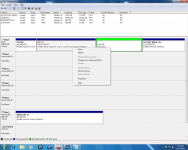
Ok so I ended up using the system recovery somehow, and now my hard drive shows this when it's supposed to be 640GB? And how do I combine all of these together?
 

Attachments

  • afterrestore.png
    afterrestore.png
    150.2 KB · Views: 16
Ok so I ended up using the system recovery somehow, and now my hard drive shows this when it's supposed to be 640GB? And how do I combine all of these together?

How big was your Ubuntu partition? That program is running under Windows, and Windows doesn't detect ext3 natively, so I'm guessing that your Ubuntu install is sitting there invisible, waiting for GRUB to be configured correctly. Grub can be a bit of pain at times, but I've never seen problems of this scale.
 
How big was your Ubuntu partition? That program is running under Windows, and Windows doesn't detect ext3 natively, so I'm guessing that your Ubuntu install is sitting there invisible, waiting for GRUB to be configured correctly. Grub can be a bit of pain at times, but I've never seen problems of this scale.

Well, before I installed it, I made a 10GB partition, and then when I was trying to install it it wouldn't use it, it had to make its own, so I made that one around 10GB too. If I just boot into Ubuntu with the live CD, I use GParted, right? Are there any tutorial sites with this kind of stuff?
 
Ok so I ended up using the system recovery somehow, and now my hard drive shows this when it's supposed to be 640GB? And how do I combine all of these together?
That's exactly 640 GB HDD, if you question it, which is exactly 596 GB large (about 640130146632 bytes, calculating from the screen shot). I know it's odd, but disk sizes are divided by 1000, and not by 1024, like in normal magnitude of bytes, kilobytes, and so on.

How big was your Ubuntu partition? That program is running under Windows, and Windows doesn't detect ext3 natively, so I'm guessing that your Ubuntu install is sitting there invisible, waiting for GRUB to be configured correctly. Grub can be a bit of pain at times, but I've never seen problems of this scale.
Windows detects all ext3 and other linux partitions if they were created on primary or standard extended partition (not linux extended [0x85] or LVM) as Healthy without system name, so that image only tells that partition table has unallocated entry or first sector of that partition is empty. If there is some file system, it needs to have at least first sector valid to be shown in Disk Management utility as Healthy or Unknown. So this partition is empty. The first sector of it was zeroed. It's neither ext nor Reiser nor windows extended nor linux extended nor LVM.
 
Last edited:
If I just boot into Ubuntu with the live CD, I use GParted, right? Are there any tutorial sites with this kind of stuff?

GParted manual

Look down for "working with partitions"

Though when installing Ubuntu, I would use the partition manager in Ubuntu, just because it sets up GRUB for you.
 
GParted manual

Look down for "working with partitions"

Though when installing Ubuntu, I would use the partition manager in Ubuntu, just because it sets up GRUB for you.

This computer is getting old... Anyways I was restarting my computer to try to get into safe mode and defragment, and now it says missing bootmgr. I searched the internet and did some fixboot command, and that didn't work. And the startup recovery didn't work. How do I fix this? Also, when I finally get my full installation discs, will I be able to completely wipe the hard drive and do a completely fresh install? Even though I'm already sick of restoring and reinstalling all of my games...
 
This computer is getting old... Anyways I was restarting my computer to try to get into safe mode and defragment, and now it says missing bootmgr. I searched the internet and did some fixboot command, and that didn't work. And the startup recovery didn't work. How do I fix this? Also, when I finally get my full installation discs, will I be able to completely wipe the hard drive and do a completely fresh install? Even though I'm already sick of restoring and reinstalling all of my games...


I think you would have to use your Windows CD to fix the boot manager.

And yes you can clean everything off the HD using your Windows cd. (even Ubuntu CD or Gparted...)

Since you apparently have a second computer, might I suggest making a clone of your computer after all programs have been installed.

clonezilla.org/
 
This computer is getting old... Anyways I was restarting my computer to try to get into safe mode and defragment, and now it says missing bootmgr. I searched the internet and did some fixboot command, and that didn't work. And the startup recovery didn't work. How do I fix this? Also, when I finally get my full installation discs, will I be able to completely wipe the hard drive and do a completely fresh install? Even though I'm already sick of restoring and reinstalling all of my games...

With XP the commands were fixmbr and fixboot. Since your MBR is shot to hell (somehow, again) this would be a good idea.

Once you have a proper install medium, I even advise you to wipe the whole disk and partition it the way I described earlier.
Just make sure to install linux after windows. Windows has the tendency to be so user friendly as to install it's own bootmanager without asking.
 
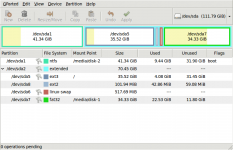
Ok, so Boot Recovery finally decided to work, and I'm back to Windows 7! However, the partition is still messed up like the picture above. Also, I still want to have Ubuntu. Should I use gparted, partition magic, or 7?
 
Hello there. For duel boot setups I find it best to use the grub boot loader. What's more, I like to keep grub on a separate, dedicated partition. This makes it is very easy to maintain multiple operating systems on a single hard drive. Installing new operating systems simply requires you to boot and modify the /boot/grub/menu.lst file accordingly.

How I do it:

1. Create a partition of around 100 MB (to make sure there is plenty of space for the future), and format it to ext2.
2. Create the directories: /boot/grub. You will also need to copy at least the stage1 and stage2 files. They are usually located in /boot/grub folder. I would however do "locate stage" and copy all the files from the i-386 directory.
3. Copy a template menu file from an existing linux installation
4. Make sure that the boot folder contains the appropriate images as referenced by the menu file for booting into existing OS.

Then you will need to overwrite the MBR to use the GRUB boot loader. In debian based distributions, in a terminal:

sudo grub
grub> root (hd0,x)
grub> setup (hd0)
grub> quit

Where x is your partition number minus one. That should do it :D.
 

Attachments

  • Screenshot--dev-sda - GParted-1.png
    Screenshot--dev-sda - GParted-1.png
    64.2 KB · Views: 7
1. Create a partition of around 100 MB (to make sure there is plenty of space for the future), and format it to ext2.
Why so much space for /boot? I have only 32 MB boot, minix with max 128 inodes formatted partitions (both on laptop (32bit linux) and desktop (64bit linux)), and they are sufficient for at least 5 linux kernels and 5 initramfs images simultaneously, with grub installed there. And /boot doesn't need to be mounted all the time, so Minix filesystem support for kernel can be built in a module. The only drawback of using Minix fs is maximum of 31 characters file name length. Since linux 2.6.30, kernel and initram can be compressed with lzma, so there is even more space left for additional kernels and initram images on boot partition. But that all is for Gentoo, and I don't know, maybe Ubuntu kernels and init images are much larger and use more than 31 characters in their file names.


The rest of linux partitions (root, swaps, tmp, usr, home, var, opt) I'd personally place on LVM, but since I don't have Ubuntu, but Gentoo, I don't know if premade Ubuntu kernels from installation disks support root on LVM.
 
Given the size of modern hard drives, skimping on /boot doesn't make sense anymore -- you can easily exceed five kernel images if you upgrade regularly, and it's a pain to go back and keep trimming old images all the time. [That's why I created a 200 MB /boot partition on my Fedora Core 9 Oracle box for work.] As cx said, it's to make sure you don't ever have to worry about running out of space in the future. For some perspective, a 100 MB partition on a modest 500 GB drive is only 0.02% of the total space (0.0002 of the total space). So it doesn't make sense to squeeze /boot down anymore that unless you're running on a tiny drive.
 
Yea, but why to keep all the kernels, when you use only one regularly. I keep only 1 or 2 of them for all the time, and 3 or 4 for a week or two after compiling new version (and do the same to kernel modules).
 
Last edited:
Given the size of modern hard drives, skimping on /boot doesn't make sense anymore -- [..]
:hesaid:

But I don't even see the point of using different partitions for everything on Linux, for a 'newbie' machine for desktop/laptop purposes. It's not like you want to have five Linux distros installed simultaneously, or change distribution every two months, and many justifications for Internet servers don't apply here either. I think simplicity is more important here.

Making a dual-boot system has always been a problematic thing. You really have to know what you're doing, or otherwise you risk making your disk un-bootable, or even losing the data on the disk. Things have improved a bit over the years, and the Ubuntu people did a good job making it as easy as possible, but apparently it can still fail.

I don't know if windows 7 is different, but on my (windows XP) systems I use (with some variations) the following:

  • GRUB installed in the Master Boot Record (MBR)
  • A windows partition:
    • PRIMARY partition
    • file system: NTFS
    • size: enough for current contents of the disk, plus expected space needed for future windows programs and data
    • mount point: something like '/media/winc', or whatever your distro suggests.
    • downsized version of the original windows partition
  • An EXTENDED partition
    • This contains the logical partitions, and should fill all the space not occupied by the primary partition(s)
  • A Linux partition
    • LOGICAL partition
    • file system : ext3, reiserFS or whatever your distro likes to use by default. On Ubuntu I use ext3, but I read that the latest version uses ext4.
    • size: enough for the Linux installation, plus data files you plan to store in your home folder
    • mount point: '/'
  • A Linux swap partition
    • LOGICAL partition
    • file system and mount point: choose something like 'swap' or 'Linux swap'
    • size: at least the size of your RAM (otherwise suspend to disk may not work in Linux). So far I always used twice the RAM size.
  • A windows partition
    • LOGICAL partition
    • file system: FAT32.
    • size: enough for the intended purpose. However, remember that in windows XP it is impossible to format a > 32 GB partition as FAT32. I don't know about win7.
    • mount point: something like '/media/wind', or whatever your distro suggests.
    • This partition is intended for exchanging files between windows and Linux. It is FAT32 because Linux still doesn't support writing on NTFS very well. Thanks to m$ for not providing documentation of the NTFS format.
I always choose 'manual partitioning' in the Linux installation setup, to make it like this. Even if, instead of manual partitioning, you let the setup program decide what it does, it's good to know what it has chosen to do.

Some things to remember:

  • First install windows, then install Linux. In the finished system you want to have Linux' GRUB boot loader installed, and the windows installer tends to overwrite it with its own boot loader. Windows' boot loader won't allow you to boot Linux.
  • The partition where the windows OS is installed needs to be a primary partition. Maybe it also needs to be at the beginning of the disk (within first 1024 cylinders), but I'm not sure about that. Also, I don't know whether these things have improved in win7.
  • Windows used to support only a single primary partition, and a single extended partition, in which all other partitions are present as logical partitions. I don't know if this is still true for win7, but I tend to follow this rule.
  • The MBR is actually a very small thing, and it's way too small for an advanced tool like GRUB. So, when you choose to install GRUB in the MBR, actually only the first stage of GRUB gets installed there. The rest, and some configuration files used by GRUB, are installed on the Linux partition. With multiple Linux partitions, it will be installed on the one that contains the '/boot' directory. IMPORTANT: this means that GRUB doesn't work anymore if that partition gets deleted / corrupted. Also, for some changes to the Linux partition (I don't know exactly which), GRUB needs to be re-installed in the MBR. If GRUB doesn't work, you can't boot windows or Linux, and you have to use another medium (e.g. a CD-ROM) to boot the computer and fix the problem.
  • A newly created partition needs to be formatted before it can be used. Formatting an existing partition will remove(*) all its data.
  • The windows MBR program tends to make a difference between active and non-active partitions: it executes the boot sector program of the active partition, which usually loads the OS on that partition. AFAIK, GRUB does not make that distinction. Its behavior is controlled by a config file, and usually it is configured to display a menu with different boot options. For windows, it executes the boot sector of the windows partition. For Linux, it loads the kernel and starts it.
  • There used to be some incompatibilites between different partitioning programs. I usually choose the best one I have for all my partitioning actions, and (re-)do the formatting with the OS that is supposed to use the partition. In the past, I've used Partition Magic, but as it's non-free, and gparted has become quite good, I've switched to gparted for partitioning.

(*) Actually, most of it is still on the disk, but without special tools you won't be able to access it.
 
The biggest problem I had with Windows 7 and Ubuntu was preserving GRUB. I ended up using Super Grub Disk and it worked like a charm.

I don't know if this has been said, but make a smart partition table. When I upgraded to 7, I needed to put more diskspace into my C: drive, which meant taking a huge chunk of my blank NTFS partition I use as swap space and moving that space to the left 4 times before I could get it into my windows drive. I did it by using a small linux partition on a USB key with gparted on it, and that worked well. Put a good size swap space between your partitions and not at the very end of the table.
 
But I don't even see the point of using different partitions for everything on Linux, for a 'newbie' machine for desktop/laptop purposes.
I don't say there's a point of making more than 2 linux partitions for 'newbie'. If you want only one Linux partition, then create it instead of LVM or multi-partition. But the best is to leave /boot on a dedicated partition to prevent deletion or movement of grub files to other location on disk (and I don't mean directory, but disk sector), or filesystem corruption. And with that, you can even use reiser3/4 or btrfs with tails and compression for root partition which grub doesn't support.

The partition where the windows OS is installed needs to be a primary partition. Maybe it also needs to be at the beginning of the disk (within first 1024 cylinders), but I'm not sure about that. Also, I don't know whether these things have improved in win7.
Not true. I have temporary Windows XP installation on laptop at the end of disk on active hda4 (NTFS primary), and hda1 (NTFS primary) is reserved for "permanent" installation of Windows, when I find time to backup all data from it.

Windows used to support only a single primary partition, and a single extended partition, in which all other partitions are present as logical partitions. I don't know if this is still true for win7, but I tend to follow this rule.
Also not true. There can be either 4 primary partitions and 0 logical, or 3 primary and more than 0 logical. On the computer I'm currently sitting I have 3 primary partitions in MBR, 2 for Windows, 1 for LVM, and extended one which holds /boot and the rest of Windows partitions. There can be only one extended partition, and only extended partition must have only one logical partition entry, and one extended partition entry pointing to next logical partition, if there is space left, to be valid.

However, remember that in windows XP it is impossible to format a > 32 GB partition as FAT32.
This is also not true. Impossible only for explorer formatting / disk management utility.

Also, for some changes to the Linux partition (I don't know exactly which), GRUB needs to be re-installed in the MBR.
The problem could be moving stage / menu files to other disk sector, or that if you delete some of logical partitions, the logical partition numbers for next partitions will also change for grub (i.e. if you deleted hd(0,5), hd(0,6) becomes hd(0,5), hd(0,7) becomes hd(0,6), and so on).

The best IMO is creating one primary for Windows (1st or 2nd entry in MBR, depending on which system is your primary - if Windows, then at beginning of disk, otherwise after linux partition), one primary for LVM [or whole Linux] (1st or 3rd MBR entry), the extended one with logical partitions for Windows (on 2nd or 3rd partition - following Windows primary), and last primary for /boot (4th MBR entry / last few cylinders of disk - it can sit at the end of disk, because it's only read once during boot, or is the least used partition, and even doesn't need to be mounted for normal operation). Even if you delete all but 4th primary partition, grub loader will work, and 4th partition will still be the 4th, it won't change like for logical partitions. That's what I have on my desktop, and I've never had problems with grub not working after repartitioning / configuration change, when MBR program code was intact.

And here's my current disk map for my desktop in disk position / volume creation order:
  • sda1: NTFS (C: system)
  • sda2: extended
    • sda5: NTFS (D: programs and data)
    • sda6: NTFS (E: storage)
    • sda7: FAT32 (F: linux exchange)
  • sda3: LVM (vg: Gentoo)
    • root Reiser4 (/)
    • usr Reiser4 (/usr)
    • var Reiser4 (/var)
    • swap0 swap (1st swap)
    • home Reiser4 (/home)
    • tmp Reiser4 (/tmp)
    • vartmp Reiser4 (/var/tmp)
    • opt Reiser4 (/opt)
    • src Reiser4 (/usr/src)
    • distfiles Reiser4 (/usr/portage/distfiles)
    • swap1 swap (2nd swap - for TuxOnIce hibernation mostly)
  • sda4: Minix (/boot)
All this may change when I switch to btrfs.

The windows MBR program tends to make a difference between active and non-active partitions: it executes the boot sector program of the active partition, which usually loads the OS on that partition. AFAIK, GRUB does not make that distinction.
Partition table is legacy of DOS, so it is also active partition flag, and it needn't be respected by other than Windows' MBR loaders. BTW, there are also Dynamic Disk Volumes which can be used instead of partitions in Windows since W2K/XP Pro (it's something like LVM for Linux). And that is also next argument to the point that Windows doesn't need to be installed on primary partition.

There used to be some incompatibilites between different partitioning programs. I usually choose the best one I have for all my partitioning actions, and (re-)do the formatting with the OS that is supposed to use the partition. In the past, I've used Partition Magic, but as it's non-free, and gparted has become quite good, I've switched to gparted for partitioning.
The fdisk for Linux is the best partitioning program I've used. And formatting of partitions I leave for other programs.

 
Can anyone tell me if the recovery disks (not the repair ones, the ones that come in packs of 3, from HP) completely format the hard drive, even the linux ones it can't read?
 
Back
Top