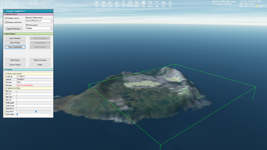
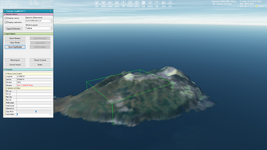
This is a request that goes in hand with what I have posted previously in this thread:
https://www.orbiter-forum.com/threads/flat-cape-canaveral-area.41771/
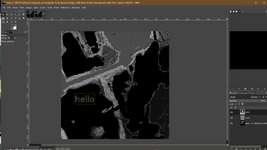
This editor would take the guessing out of getting flat/elevated areas. Right now, using the D3D9Client *.flt files, it's a pure guessing game of trial&error to see where you are actually editing the the terrain. It would work in tandem with the actual planetary textures so you could see the terrain you're editing.
Such a tool already exists. Tileedit in your utils folder, though I recommend the beta version from here:
Visual navigation of the quad-trees containing the tilesets for planetary surface layers. This version: fixes a problem when importing surface tiles that are not yet represented in the quadtree. f...

github.com
Place it in the utils folder overwriting the default one that comes with Orbiter.
Run Orbiter and use the scenario editor to place a vessel near the coordinates that you want to flatten.
Use this tool to figure out which tile you need to edit. (copy/paste latitude and longitude from Orbiter, select the resolution level and it will return the tile index).
What would the procedure be to do this? There is nothing in the Orbiter_Config documentation that shows how to do this. Check out page 18, the one you want is RUNWAY.
www.orbiter-forum.com
Run tileedit.
Press File->Open and navigate to Textures\Earth. Press Select Folder.
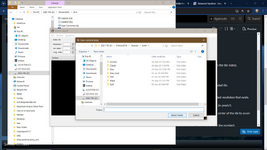
Enter the endices from the excel file. --Or you can simply zoom in to the area that you want to edit by clicking on the correct quadrant of the loaded tile.
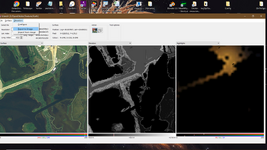
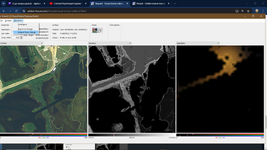
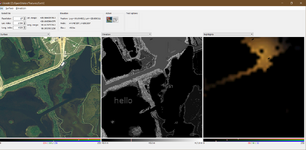
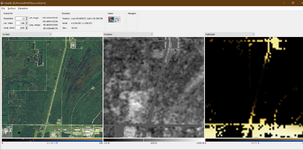
You can zoom in on a particular quadrant of a tile (and load the next resolution level) by clicking on it. Select Surface on one side and Elevation in the middle (or whatever combination suits you).
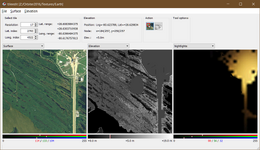
When you see 2 numbers on the tile, it means that you're passed the max resolution that exists for that level and you are looking at a part of the last resolution that exists. Don't edit an elevation tile for which the resolution doesn't exist. IIRC the tile will be created, but you will probably get visible seams.
(in this pic the elevation shows 2 numbers. The area showing is at level 18 but the tile loaded is level 17 because 18 doesn't exist.
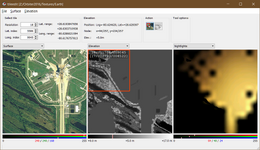
You want to focus on the Elev tiles. Select the Edit Elevation icon from the Action icons and set the elevation (in meters) and the size of the brush (in pixels?).
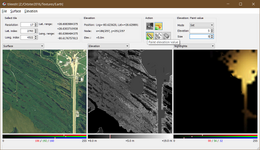
Paint on the elevation tile the area that you wish to flatten. When you are done, select the Navigate icon in the Actions area and click once in the center of the tile to zoom out.
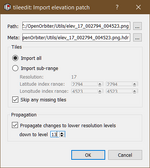
The changes that you made will be applied to the tile and also to the previous resolutions (I think up to some levels before, but I don't remember the number).
You can navigate to the adjacent tiles by clicking on the edge of the tile (a red arrow will appear, action must be set to navigate)
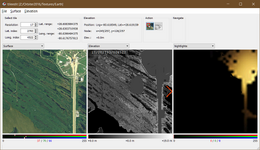
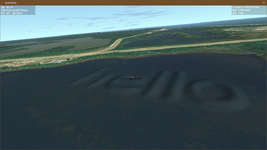
When you are done, load Orbiter to check your flattened area.
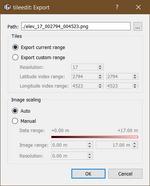
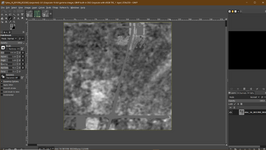
I strongly recommend making backups of the elev tiles that you will edit, in case you are not happy with the result. (that is if you have already extracted the elev tiles from the archive files).