Nonono...
You mustn't call LCDprint directly out of loadVC. LCDprint goes into the redraw function of you panel element, which in turn will be called by clbkVCRedrawEvent. LoadVC is only responsible for registering everything.
also, :lol: at the rabbits. So true. I'm afraid I'm not much better currently, but at least I have the excuse of typing with one hand while trying to put my son to sleep with the other (not the one that had surgery, he's sleeping fine, given all the drugs stll circulating through him...)
---------- Post added 07-05-12 at 07:19 AM ---------- Previous post was 07-04-12 at 10:15 PM ----------
Having both hands free at the moment, I'll try to be a little more helpful, and describe the basic workings of the whole system.
First, we have
It is used to initialise your virtual cockpit and register active areas. Active areas have to be registered so orbiter can decide when they were clicked and when they have to be redrawn, and also to associate each area with a
drawing surface (if the element needs to draw anything). That is, the surface you associate them with here will be the one passed to you later on when the element needs to be redrawn. If you look at the DG source code, you'll see that it obtains only three different surfaces, presumably equivalent to the upper, middle and lower panel, for which it uses three different surfaces even in VC mode (this should have more to do with the structuring of the VC mesh than with the panels, really, I
assume that the bulk of the VC uses three meshgroups who are modeled after the three panels purely for convienience).
Anyways, this tells you one thing: Your element does not
have to be its very own meshgroup, but it very well can be. If it is, you will need to get its specific surface (which orbiter will already have created for the meshgroup when you loaded the mesh,
at least if you UV-maped the thing), and use it to register your VC area.
The redraw events you enter when registering will determine when orbiter will do a redraw of the element (for example if left mouse clicked aso). If you want your element to only update at certain times and not by user input, you use only PANEL_REDRAW_USER and then trigger the redraw yourself at apropriate times, for example at a regular interval if your element is supposed to be updating every second or so. You'll also have to provide your element with a unique ID, which orbiter will pass to clbkRedrawVC so you can identify it.
Next up, clbkVCRedrawEvent:
Code:
clbkVCRedrawEvent  ( int  id,
  int  event,
  SURFHANDLE  surf
 )
In here you do all the drawing, or you call redraw functions of elements to be redrawn (usually the better way, as this function will get impossibly long if you do all the drawing directly in here).
It is important to understand when this function is called: It is called when one of your registered panel elements decides it should be redrawn, based on the redraw event identifiers you registered it with.
THIS FUNCTION CANNOT BE CALLED DIRECTLY!
The function
allways gets called from a registered panel element, that will provide it with its id, so you know which element called the function and wants to be redrawn, the event that triggered it so you know what's going on, and the surface you registered it with so you know where to draw on. If you registered a wrong surface, you will see your element redrawing at the wrong position, if you'll see it redrawing at all.
If you want to force a redraw on a cockpit element, make sure you registered it with PANEL_REDRAW_USER as a event identifier, and use oapiTriggerRedrawArea. The element specified will then call clbkVCRedrawEvent and provide you with the neccesary data. If you wouldn't do it that way, you would have to obtain the surface directly from the VC mesh every time you want to draw on it.
When using oapiTriggerRedrawArea, especially for redraw events that work on a timer,
make sure the vessel calling it is the current focus vessel! oapiTriggerRedraw will NOT identify the vessel that called it, and calling it while another vessel has the focus may trigger a redraw on its panel/VC, and that can have some rather unpredictable consequences...
Anyways, now you have to identify the element that triggered the redraw event and draw it. I see above that you simply stated 1 as ID for your element. I guess it would work, but it's very prone to duplication due to human error. Best is to define all your element identifiers in an enum in the header, for example
Code:
enum {AID_MFD1_LEFT_BTNS, AID_MFD1_Right_BTNS, AID_LCD_DISPLAY}
or somesuch.
Then you can check the id of the calling element in clbkVCRedrawEvent like this:
Code:
if (id == AID_LCD_DISPLAY)
  LCDPrint(surf, "123456", 6);
This is more or less the process. What we haven't looked at yet is the
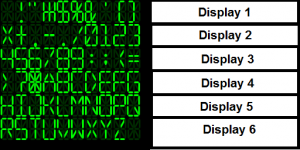
source surface, that is the surface that contains the texture you want to draw from, in your case the dds containing your font.
This source surface
can be the same as the drawing surface, but it mustn't. If it is, what you most likely did is put the font into the texture of your VC mesh, in an unused place. Since it obviously isn't we're going to do it the other way and load it from the file you created for it.
Add a SURFHANDLE as a
public member of your vessel in the header, for example
In the tutorial, the file is loaded into the surface during clbkInitModule. I guess it should also work in the constructor, but this way is better since in case that there are multiple instances of your class in a scenario, the file is still only loaded once. This is also why we made the handle public. So in clbkInitModule, you add a line that goes somewhat like this:
Code:
MyVesselClass::LCDfont = oapiLoadTexture ("LCDfont.dds");
From now on out, LCDfont will contain your font bitmap as a texture. Now observe that in your LCDPrint function, you must use this surface as source surface, and the surface passed to you by clbkVCRedrawEvent as target surface.
There. All that's left to do is free the LCDfont surface when you exit the module, so in clbkExitModule you put the line
Code:
oapiDestroySurface (MyVesselClass::LCDfont);
I hope that helps to at least partly aleviate your confusion.