New Release D3D9Client Development

Here's a development patch (only for developers) for a ray-traced VC textures. It's been a while since I last time build a binary patch so I hope I didn't forget anything. Orbiter can be downloaded from the GitHub page by clicking a small "tag" icon next to "branches" and then select "downloads". This patch is x86 build
 

Attachments

Hi, just wanted to ask if I understand correctly that D3D9 terrain flattening isn't compatible with cubic interpolation for the surface elevation in OpenOrbiter?
 
Hi, just wanted to ask if I understand correctly that D3D9 terrain flattening isn't compatible with cubic interpolation for the surface elevation in OpenOrbiter?
It should be. I can't think of any reason why it wouldn't be.
 
It should be. I can't think of any reason why it wouldn't be.
There appears some difference between Orbiter 2016 and OpenOrbiter in this. D3D9 terrain flattening works only with linear interpolation in Orbiter 2016:

flat.png

whereas in OpenOrbiter (I tested x64 build) the flatted textures dissaper with cubic interpolation at close distance (or sometimes just doesn't work at all). Linear (the 1st picture) and cubic (the 2nd one):

linear.pngcubic.png
 
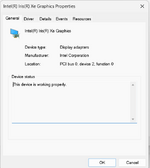
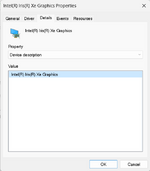
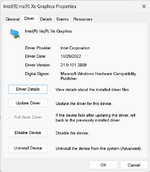
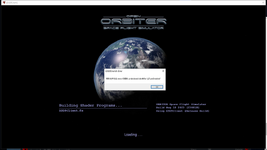
I am trying. to help someone get d3d9 working. I have downloaded and installed. But in the modules folder there was not a place to actitave d3d9. In non d3d9 graphics. They can only run RGB.
The only graphics setting I can get to work at all is the RGB Emulation and that is for the Red version of Orbiter. Any other mode crashes. The Blue icon will run, buts says it’s in the Orbiter NG (nographics) mode. Any ideas, thoughts.
 

Attachments

  • thumbnail1.png
    thumbnail1.png
    28.8 KB · Views: 5
  • thumbnail4.png
    thumbnail4.png
    22.5 KB · Views: 5
  • thumbnai3.png
    thumbnai3.png
    51.2 KB · Views: 5
Check if following have been installed:
  • DirectX Runtimes (for the DirectX 9 OS support. Higer versions of Direct X do not include the correct Direct X 9 runtimes!)
  • D3D9Client (I think that has been done, but just in case ;) ... )
 
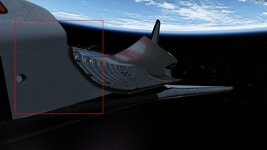
Is there any way to make the gaps created by a normal map darker? I'm trying to create a hi-res texture Columbia and Challenger, and I am using a normal map for the tiles to simulate the tile-to-tile gap, but as you can see in the attached screenshot, the gaps doesn't look quite right with the neutral grey tone. It should be darker in my mind.
 

Attachments

  • OV102_normal_map_area.jpg
    OV102_normal_map_area.jpg
    56.7 KB · Views: 29
Is there any way to make the gaps created by a normal map darker? I'm trying to create a hi-res texture Columbia and Challenger, and I am using a normal map for the tiles to simulate the tile-to-tile gap, but as you can see in the attached screenshot, the gaps doesn't look quite right with the neutral grey tone. It should be darker in my mind.
You could try to fake it by adding dark lines in the gaps in the diffuse texture. That will help to break up the texture and make it look like the tiles are separated by a small gap.
 
I am getting this error:
D3D9: ERROR: Large surface created Handle=0x15D2F818 (9889568,9889596)
 
I've just seen this old post:
The UNDERSHADOWS is supposed to be applied to a flat runways and landing pads. The object will be rendered without z-buffer beneath/below any other building or vessel. So, it looks ok to me.
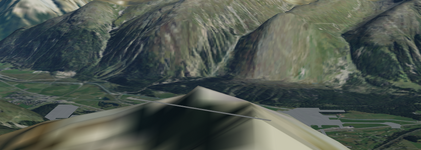
And a while ago I've written about runways which are visible through surface textures. The UNDERSHADOWS option for meshes makes them visible through the ground:

u.png

Removing the UNDERSHADOWS option from the base configuration file makes a mesh unvisible as it should be:

u2.png

Maybe it can help to make runways unvisible through the ground as it should be.

I tried this in OpenOrbiter x86.
 
Yes, it's being worked on.
Yay! Then I may finish my "PBR VC Prop Pack™", I abandoned it since Skybolt went dormant, but now that pbr shading in the vc is possible in the future, it may have someuse after all.
Here's a development patch (only for developers) for a ray-traced VC textures. It's been a while since I last time build a binary patch so I hope I didn't forget anything. Orbiter can be downloaded from the GitHub page by clicking a small "tag" icon next to "branches" and then select "downloads". This patch is x86 build
Cool! Although I get this error with the latest build (from today I think?)
1704662896460.png

The error on Orbiter.log reads:
Code:
000005.960: D3D9: [3DDevice Initialized]
000006.152: D3D9ERROR: C:\Software\OrbiterRepositories\VCRaytrace\OVP\D3D9Client\D3D9Effect.cpp Line:356 Error:-2147467259 D3DXCreateEffectFromFileA(pDev, name, macro, 0, D3DXSHADER_NO_PRESHADER|D3DXSHADER_PREFER_FLOW_CONTROL, 0, &FX, &errors)
000006.157: D3D9ERROR: Effect Error: PBR.fx(119,6): error X3004: undeclared identifier 'gTuneEnabled'
 
It looks like you are trying to fit incompatible pieces of executables and shaders. PBR shading in VC is still being worked on and it's not yet in a working condition. There's been some complications in a development but the work is going forward and will be finished. Just a little patience.
 
Maybe it can help to make runways unvisible through the ground as it should be.
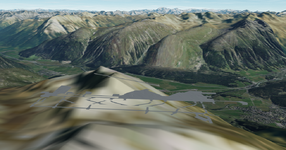
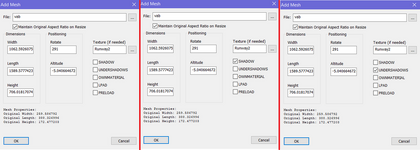
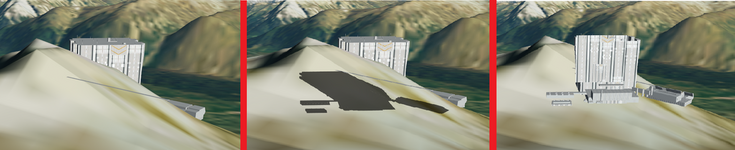
I made some additional tests. It seems that such objects like runways, landing pads, hangars, and so on, are visible through the ground due to shadows from these objects. I placed the VAB mesh in the mountains, chose the texture Runway2.dds for this mesh and tried three cases:

0.png

Results:

00.png

In the first case the mesh with its texture isn't shining through the ground. So, maybe we should just make a flat mesh (I just haven't learned how to do it yet) with the texture of a runway, if we want the runway (and other objects) not to be visible through the terrain? It just sounds so simple :D Or not, and this idea won't work? :unsure:
 
@jarmonik, thanks so much for updating your TerrainToolKit with 20-21 levels. Now it's clear how this work. And especially BIG THANKS YOU for the tile MIP maps for all tile levels. It's just a wonder!!! I really dreamed about this feature!

Now we have such crisp textures with a significant reduction of flickering. On these screens I chose the highest Texture Bias and Mesh resolution in D3D9Client:

Без імені.pngБез імені2.png

Do I understand correctly that these MIP Maps for high levels don't work for water "textures" and that's why they still flicker?
 
Last edited:
I detected numerous crashes to desktop on the last Orbiter x32 build on github. I made some tests. At first I thought it's due to the two additional levels 20-21, not to the MIP maps for all levels, because these crashes didn't happen when I enable All levels for Tile mipmap policy in D3D9Client, and restrict Max. resolution level to 19 on Launchpad. But after some time I get crashes even for this case too. I haven't noticed such crashes in the previous build where levels 20-21 were added, but MIP Maps for all levels not yet, but I didn't play that build for long. My Orbiter.log and a screenshot are attached. Hope these can help.
 

Attachments

  • Orbiter.log
    Orbiter.log
    269.3 KB · Views: 4
  • o.png
    o.png
    525.5 KB · Views: 11
Last edited:
I reduced Mesh resolution to 32, and those crashes disappear. I don't even notice the significant difference in graphics between 32 and 64 values. It's a little noticeable in Cape Canaveral (64 value makes more hills), but this difference is complitely invisible on my custom highly detailed tiles.
Out of Video Memory
Is it not related to my Video RAM? Since I have 4 Gb, and Orbiter uses only ~1.4.Gb at 64 mesh resolution.

What could cause these crashes in the current build? They didn't happen earlier when I used 64 mesh resolution in the previous build. It's strange because these crashes remains if I enable MIP Maps for only low level and restrict Max. res. level to 19. Maybe it's due to something other changes in the new build?
 
We probably should remove the 64 option because the impact to memory consumption is high and benefit very small.
The error code and the function that fails indicates "Out of Video Memory". I made some testing and didn't notice any memory leaks during simulation. Of course there is a possibility that some algorithm might still be stuck at level 19 and might cause a failure with level 20+ tiles but I haven't had time to test that yet. Memory statistics can be monitored with [Shift+Alt+Ctrl+C]

Has anyone else noticed a problem there ?
 
Back
Top