New Release D3D9Client Development

I noticed a difference in font size in recent RC builds for custom HUD text. Here is the code:

Code:
m_pHudNormalFont = oapiCreateFont(20, false, "Lucida Console", FONT_BOLD);
...elsewhere...
skp->SetFont(GetNormal2DHUDFont())
skp->SetTextAlign(oapi::Sketchpad::LEFT);
sprintf(str, "%s meters", altitudeStr);   // e.g., "10,292.6 meters"
skp->Text(x, y, str, static_cast<int>(strlen(str)));

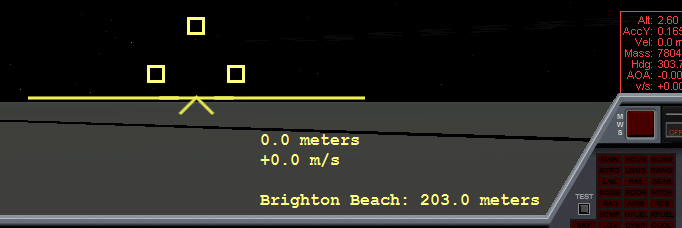
Here is how it looks in the internal DX7 renderer (OK):

dx7_internal_HUD_font.png


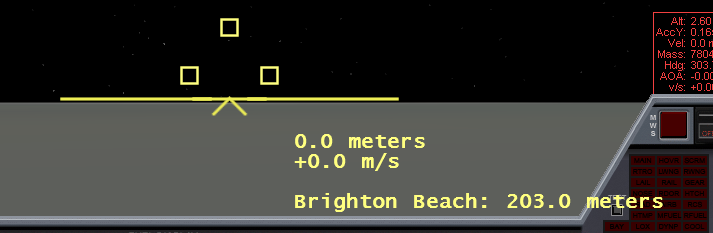
On recent D3D9 builds, however, the font looks about four points too large:

dx9_rc33_HUD_font.png


Has something changed in recent D3D9 builds? Also, is there a documented API call to detect which external graphics client is running, if any? If so, I can work around the font size differences between clients.
 
I used DDS Converter 2. The options are .bmp, .dds, .png, .psd, .jpg, .jif, .jpeg. I'll try your normal maps.
What color format and/or compression format did you choose?
 
I noticed a difference in font size in recent RC builds for custom HUD text. Has something changed in recent D3D9 builds?
Unfortunately yes, The inline engine and previous versions of D3D9Client were forced to use three default fonts "Courier New", "Arial" and "Times New Roman". From the current version of the D3D9Client this limitation is removed and a user requested font will be used if available. In your case "Lucida console". I'll just need to remove two character from the source code to restore the original behaviour. I suppose this can cause problems with other add-ons as well so it's probably better to restore it.

Also, is there a documented API call to detect which external graphics client is running, if any?

Nothing that I am aware of. It would be good to have that kind of API call.

---------- Post added at 13:08 ---------- Previous post was at 12:59 ----------

Ok, thanks :). I did put orb's textures in the same folder, but I didn't know the .dds part.
I converted them to .dds, and put them in the DG's texture folder, but now I get the DG all black:

Format 861165636 is DXT3 and it isn't supported because a typical compressions will produce a bad compression artifacts in normal maps. The uncompressed RGB format is the most easiest to get working.

---------- Post added at 13:12 ---------- Previous post was at 13:08 ----------

Any ideas on the "Albeto" issue from that post?

Albedo value isn't available from the Orbiter therefore graphics clients can't use it. However, I am hoping that it would be available in the next release of Orbiter.

ShaderModel20: I have uploaded a shader files for shader model 2.0 to allow a testing of the client with a hardware that doesn't have shader model 3.0 support.
 
Last edited:
I downloaded RC33 last night took all the necessary files and now even at night i get full lighting on my ship. like the suns shining from all directions. any clues?
 
What color format and/or compression format did you choose?

Converted with 90% opacity, all I can say. The compression format is mentioned in the top right corner but has a " - " after it. Looking at the options, there's a DDS part. DXTc format is DXT3, build mipmaps enabled, tool set to nVidia.

jarmonik said:
Format 861165636 is DXT3 and it isn't supported because a typical compressions will produce a bad compression artifacts in normal maps. The uncompressed RGB format is the most easiest to get working.

So, a .rgb file? Or any option I have to choose in the converter

Thanks for the help by the way.
 
So, a .rgb file? Or any option I have to choose in the converter

When you save a file to ".dds" in Paint.NET (as an exemple), there are several attributes options like DTX1 to 5, and a lot of codes like "R8G8B8". The right format is DTX1 "R8G8B8", at least it is working on my machine.
 
When you save a file to ".dds" in Paint.NET (as an exemple), there are several attributes options like DTX1 to 5, and a lot of codes like "R8G8B8". The right format is DTX1 "R8G8B8", at least it is working on my machine.

Ok, thanks.
 
Converted with 90% opacity, all I can say. The compression format is mentioned in the top right corner but has a " - " after it. Looking at the options, there's a DDS part. DXTc format is DXT3, build mipmaps enabled, tool set to nVidia.


So, a .rgb file? Or any option I have to choose in the converter

Thanks for the help by the way.

The file format stays as DDS. If you want an RGB normal map (or V8U8), find "uncompressed" or something like that, and not DXTc for the DDS file.


If you want DXTc compressed normal map, choose DXT5, but:
  1. Decompose your normal map into channels in graphics editor (you need a greyscale image created from red channel, and a greyscale image created from green channel).
  2. Then, if you can separately choose file for alpha channel in the DDS converter, open greyscale image created from green channel of normal map as your image, and use for it the greyscale image created from red channel as the alpha channel (in DDS converter).
  3. If you can't do the above point in the DDS converter, move the red channel of your image to its alpha channel, and then convert that image to DXT5 DDS.
DXT1 with standard RGB mapping for the normal map (without alpha) would give you smaller file, but the normal map will be more distorted.
 
When you save a file to ".dds" in Paint.NET (as an exemple), there are several attributes options like DTX1 to 5, and a lot of codes like "R8G8B8". The right format is DTX1 "R8G8B8", at least it is working on my machine.


Tryed it, and the DG still appears all dark. Used Pain.NET to save them with the R8G8B8
 
I downloaded RC33 last night took all the necessary files and now even at night i get full lighting on my ship. like the suns shining from all directions. any clues?

1. Check the ambient light level from the Visual Effects tab.
2. Reinstall the client and make sure that every file is replaced. It's probably most common issue that shader files and executable are from a different installations.

---------- Post added at 00:36 ---------- Previous post was at 00:31 ----------

You can use nVidia texture tools. It's a command line tool but probably the best available. Just copy the nvdxt.exe in a texture folder and execute the commands form a command line.

for an example:
nvdxt -file dgmk4_2_ns_norm.bmp -v8u8
or:
nvdxt -file dgmk4_2_ns_norm.bmp -dxt5nm
 
How do I know which version of the nVidia tools to download, 32-bit or 64-bit?
 
How do I know which version of the nVidia tools to download, 32-bit or 64-bit?
32-bit will work for sure in any OS. (64-bit will require 64-bit OS).
 
How do I know which version of the nVidia tools to download, 32-bit or 64-bit?

Is your operating system 32-bit or 64-bit (32-bit I guess)?

You can use the 32-bit version on both 32-bit and 64-bit operating systems, and the 64-bit version only on 64-bit operating systems.
 
Ok, I installed the Texture Tools, and I see no nvdxt.exe. Just 4 folders: bin, lib, src and include, and a MS-DOS batch file called 'nvttcmd'
 
Last edited:
That did it, thanks! Now to convert them...

---------- Post added at 11:37 PM ---------- Previous post was at 11:26 PM ----------

I copied the nvdxt.exe file into a folder with the .bmp's, but when I execute the file, I see the command line window for like two seconds and that's it, nothing else happens...
 
I copied the nvdxt.exe file into a folder with the .bmp's, but when I execute the file, I see the command line window for like two seconds and that's it, nothing else happens...
Press "Windows key"+"R", write "cmd", press enter, then change the working directory to the one where those files are located, and execute the commands to convert files, like below (an example if you had them in D:\Orbiter Files\bitmaps):
Code:
D:

cd "D:\Orbiter Files\bitmaps"

nvdxt -file dgmk4_1_norm.bmp -dxt5nm

nvdxt -file dgmk4_2_norm.bmp -dxt5nm

nvdxt -file dgmk4_2_ns_norm.bmp -dxt5nm

exit
 
Ok, the good news is that I managed to get the RC33 client working with 2010P1 on my old laptop with shameful lack of anything resembling a graphics card ;), which is the only thing I can use for Orbiter development for the next few weeks.

The semi-good news is that RC33 also mostly works with my latest orbiter build. However:

  • the new main menu/info box implementation doesn't work, and
  • everything with Atlantis crashes after the first frame is rendered
Atlantis does work for me with 2010P1, so something has changed. I don't think it's the Atlantis code itself, because there were only cosmetic changes. So it must be something deeper in the graphics code.
As for the main menu, D3D9 complains that CopyRect failed. I've attached the log for reference. The mechanism I used was fairly similar to the way the old info boxes were implemented. As you can see, I was trying to be a good boy and have separate textures for source and target for blits. Maybe you can spot what I did wrong. One question: should the source surface _not_ have a texture interface?

Anyway, I'll try to upload a new beta soon to make this easier to analyse, although I am currently severely limited regarding orbiter development.
 

Attachments

In advance, sorry if I'm starting to be a pain :P

This command lines thing is new to me.
I have the folder with the bitmaps in the desktop.
When I open the Command Line, I get, besides the OS info:

C:\Documents and Settings\my name>

By looking at it, the Desktop folder is inside that "my name" folder.
I tryed putting:
C:\Documents and Settings\my name>Desktop\bitmaps (I named the folder where the bmps are 'bitmaps') and then the 'nvdxt' lines. I get that 'Desktop\bitmaps' isn't recognized as an internal or external command, operational program or batch file.

Again, sorry, and thanks for the help so far.
 
Back
Top