Discussion Mesh making with Blender

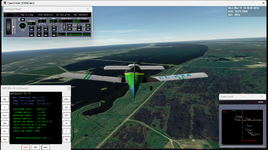
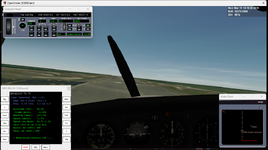
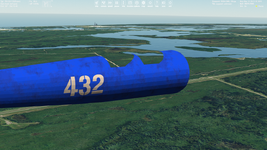
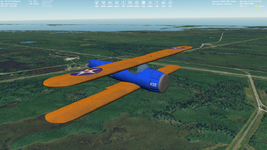
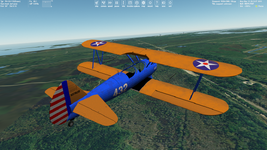
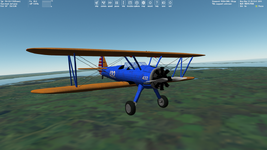
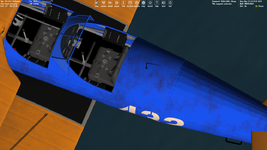
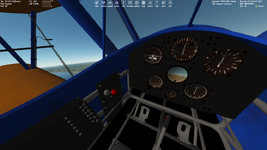
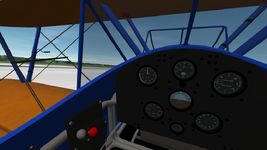
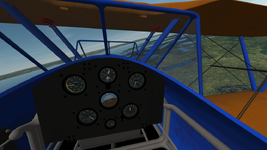
@Voyager_VI, yes, I've just released it. Please, keep in mind that the flight model isn't accurate and cabin instruments aren't functional.
 
Such a fun aircraft to fly and unbelievable that a mod as old as Autopilot 172 still works in 2024!
My old Cyborg Rumble joystick and slider 0 works perfect as well :)

Thank you for your work on the Tommy
 

Attachments

  • Screenshot 2025-07-22 144803.png
    Screenshot 2025-07-22 144803.png
    828.8 KB · Views: 7
  • Screenshot 2025-07-22 145135.png
    Screenshot 2025-07-22 145135.png
    578.1 KB · Views: 7
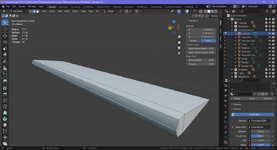
Is it possible to get coordinates (in a global coordinate system) of a vector that is collinear with an edge using some default Blender feature or some add-on? I need these coordinates for the rotation axis coordinates to animate an aileron of aircraft. Here the edge is selected:

lqEa4S9F.png

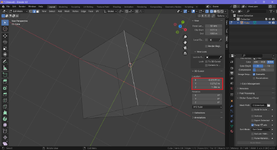
Also, I'm wondering how to get coordinates for a normal vector that is perpendicular to selected face (for animation gauges on dashboard). Of course, I could get these coordinates using coordinates of vertex and calculation, but maybe anyone knows if it can be done automatically.
 
Is it possible to get coordinates (in a global coordinate system) of a vector that is collinear with an edge using some default Blender feature or some add-on? I need these coordinates for the rotation axis coordinates to animate an aileron of aircraft. Here the edge is selected:
I use the 3d cursor to get coords, the main window view tab on the right of the screen has a location and rotation readout.
 
If you mean this, then it shows me the only location, not rotation:

Без імені.png

I don't know how the 3D Cursor can shows rotation since it's point-like.
 
You can manually rotate it, but I don't know how much that helps. For angles there's the (equally difficult to use) measure/angle tool, 8 down on the left of your screen.
 
That would be pretty difficult since we have rotations in 3D space, but well, having coordinates of vertices we can simply calculate coordinates of vectors.
 
Is it possible to get coordinates (in a global coordinate system) of a vector that is collinear with an edge using some default Blender feature or some add-on? I need these coordinates for the rotation axis coordinates to animate an aileron of aircraft. Here the edge is selected:

View attachment 44354

Also, I'm wondering how to get coordinates for a normal vector that is perpendicular to selected face (for animation gauges on dashboard). Of course, I could get these coordinates using coordinates of vertex and calculation, but maybe anyone knows if it can be done automatically.
In Edit Mode
Switch to Vertex mode
Select the edge (Both Vertices)
Press Shift-Numpad1
Switch to Orthographic View (Numpad5)
Now Both Vertices should be Overlap
Add a plane. Select Align->View in the Left Bottom Corner, the Small "Add Plane" menu
Select the Plane and press P and Separate by Selection
Apply Rotation Scale of the Plane. Menu Object->Apply->Rotation&Scale
Split the Window and Change to Python Console

Copy the Following paste it in the Python Console and Press ENTER

import bpy
obj = bpy.context.active_object
p = obj.data.polygons[0]
print (p.normal)

You will then see something like this which is the Normal Vector(Your Rotation Axis)

<Vector (-0.8047, 0.3705, 0.4638)>

If the Rotation Axis is in The Wrong Direction When you test it in Orbiter, you need to Flip the Normal of the Face
In Edit Mode Select the Face and press ALT-n -> Flip
Also you Need to Swap the Y and Z values
For my example you need to swap the 0.3705 and 0.4638 values.

 
Please excuse my ignorance..does baked mean they are now part of the mesh file or are they still a separate texture file?
 
Initially "textures" weren't separated texture files (namely they were composed of several texture images, procedural textures, shaders, ...), but after baking they turn out into just single (or several like diffuse, normal, roughness, ...) image textures for every object, so it looks (almost) the same. Orbiter requires image-like textures for meshes, and textures can't be a part of the mesh. So, textures became separate texture files, since they weren't like that at first.
 
The first time I baked textures in Blender:

View attachment 44698

This is the beginning of a new era.
Your progress looks beautiful, and yes, baked textures do look more realistic. I have a bad habit of forgetting to use them. It serves as a reminder for the next time I make an airplane.

By the way, now that I remember, I've also used baked lights, they're great for faking cabin lights.
 
I just wanted to inform you, that I'm busy now, but I'm going to continue and release this biplane add-on as soon as I can :) Then I'm going to make two more propeller aircrafts.
 
Back
Top