Discussion Mesh making with Blender

misha.physics

Well-known member
Joined
Dec 22, 2021
Messages
1,480
Reaction score
2,219
Points
128
Location
Lviv
Preferred Pronouns
he/him
So in general, unless you have a specific need to retain a transform (which is probably rare) you are better off applying them as you go.
Will it be enough If I press Ctrl+A and apply all transforms only once when I finish my modeling?
I'm a little wary of modifiers, sometimes they cause more hassle than they're worth, for low poly I'd rather use Loop Cut etc. to have more control (and I'm still learning Blender).
Yes, I've already understood that. I don't want any unexpected surprises with modifiers. I prefer more accurate modeling for Orbiter. And I only started using Blender.


Well, I added some new points, connected them with new edges, hoping this would improve the geometry. Also, I made the bottom of the plane thinner (although this doesn't correspond to the blueprinths, I like it better this way).

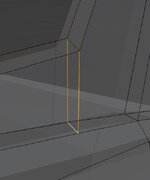
Two things I don't understand. Why do this two faces differ from neighboring ones? Could this signal some kind of feature (error) in the geometry?:
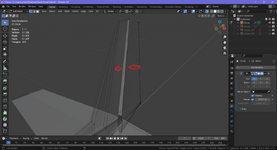
b1.png

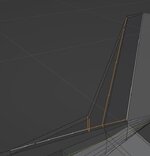
And what do these dotted lines mean? Maybe some error as well. I don't notice it anywhere else:
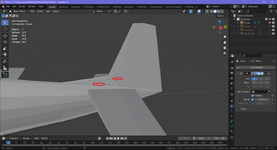
b2.pngb3.png

I attach my BLEND file if someone could try it.
 

Attachments

Will it be enough If I press Ctrl+A and apply all transforms only once when I finish my modeling?
You could do that. I prefer to apply those transforms as I go. Especially when you get into texturing and UV unwrapping, its good to have everything where you think it should be.

Modifiers:
I never use sub surface modifier for low poly work. I do use the mirror modifier all of the time.

In edit mode with everything selected, use the Merge by Distance command to clean up duplicate vertices. (F3 to search, I use that all the time)

You have some internal geometry you can delete, and I don't know why that one edge is rendering funny. I could find nothing wrong with it. Someone else may. You can just delete it, add an edge back if you need one.
 
And what do these dotted lines mean? Maybe some error as well. I don't notice it anywhere else:
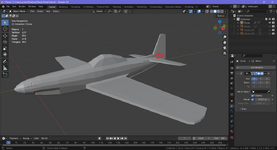
b2.png
b3.png
You have to delete these edges. They are unnecessary and do not belong to any face.

Screenshot 2024-07-06 145926.jpg

btw Looking closer to your mesh you have more unnecessary edges. All what i selected here can be deleted.
Screenshot 2024-07-06 151344.jpg

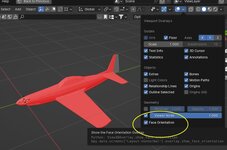
Also in your latest posted blend file, you have inverted Normals as you can see on this screenshot.
If you enable "Face Orientation" in blender every Red Face has inverted normals.
Zwischenablage01.jpg
 
Last edited:
Thanks. I deleted those edges. It looks like that was a bad idea to make a plane from a single circle using only extrusion. I'm confusing with these edges and faces. Will it be better to use separate meshes for wings, tail, etc?
 
I don't think it's a bad idea the way you made it, extruding a circe for modelling the main body of a Plane it's ok imo. If you want in future to animate your mesh, wings, tail, propeller etc then you must separate the mesh.
 
Yes, I understand. I meant if it will be better to use separate objects for different airplane parts during modeling.
 
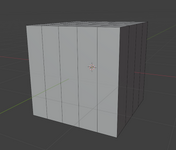
Is this normal (look at the top face of the cube)? I'm not sure if it was earlier, or I just didn't notice that, but now I see strong flickering of lines.

cube.png

I loaded factory settings in Blender, but that didn't help. Viewport Anti-Aliasing and Smooth Wires are enabled in Blender Preferences. I just run Blender, add several loops to the cube, and that's all I do.

I really don't think I noticed this before.

Blender is running under GTX 1650 Ti card on my laptop. I can only suppose that it happened after one of the NVIDIA driver update.
 
I think some visual dithering is normal unless you have extremely high resolution/anti-alias, it's just not always so noticable.
 
Could someone advice what ways are to reduce/remove such the flickering of thin meshes (like rods, wires, etc)?:

b.png

Maybe using of some materials/textures could help with it?

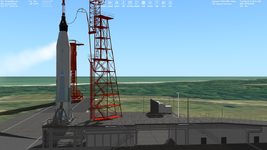
I just found and tried the Project Mercury add-on, and noticed that silver wires flicker much more than red ones:

f.png

Does it depend on the mesh, color, etc?
 
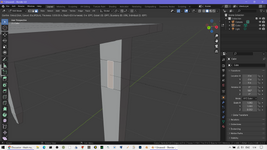
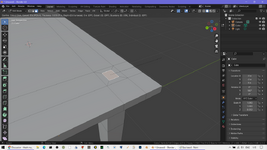
Does anyone know why I can't do "Inset Faces" on the 1st picture like on the 2nd one?:

No.pngYes.png
 
Sorry, I don't know how, but I solved it right now manipulating with the 3D Cursor and Origin...
 
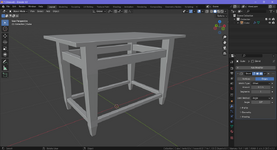
Another question. I'm trying to apply the "Bevel" modifier to the whole object (table which I made from a cube), but it has no effect:

Table.png

But it works for the table top if I separate it to a separate object and apply the modifier to it.
 
Sorry again. I had to disable the "Clamp Overlap" to see the bevel 😞
Don't worry, don't ever give up. The world of 3D is fascinating and once you learn to master it you will achieve amazing things. We all started at the beginning and it was hard for all of us, but don't give up.
By the way, have you tried 3D courses on YouTube (for example Blender Guru)? They have worked well for me and thanks to YouTube (and a book) I even learned programming.
 
Back
Top