misha.physics
Well-known member
- Joined
- Dec 22, 2021
- Messages
- 1,539
- Reaction score
- 2,332
- Points
- 128
- Location
- Lviv
- Preferred Pronouns
- he/him


Yes normalsMaybe it's related to normals,
before exporting apply all transforms, also check (reverse if nec.) normals especially of all mirrored parts etc.I used the mirror modifier,
Use mesh smoothing along with sharp edgeswondering if this mesh could look smoother in game

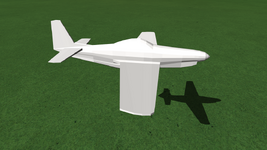
Hi @misha.physicsRecently I made a low poly plane from a single circle mesh using extrusion in Blender following blueprints. I thought it looks pretty accurate in Blender, namely has a good topology/geometry without any "singularities":
View attachment 39303
Before I tried to use the "Blender Mesh Tools" I converted this plane to OBJ to import it by Anim8or to export it to 3DS to convert it to MSH using the "3ds2msh" script.
Today I decided to convert it to MSH using the "Blender Mesh Tools". I followed the first three pages of the "Orbiter Tools Tutorial.pdf" and got a MSH.
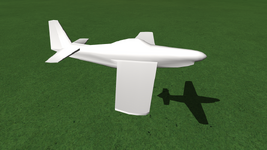
It looks like the both MSH files look similar in game (but have different sizes) and have the same issues (only one side of the wings is visible, for example). Maybe it's related to normals, I don't know:
View attachment 39299
I'm going to read all the "Orbiter Tools Tutorial.pdf", maybe I will find answers to my problems there?
I attach my BLEND file here (maybe it's needed to select the object and convert it to mesh, since I used the mirror modifier, so the only half of the object has vertices). I'll be glad if someone could look at it and try it in Orbiter. I'm wondering if this mesh could look smoother in game. What ways are there to do this? Adding vertices, normal maps for textures, etc?
@Matias Saibene, maybe you could advise me something, since you're modelling your Boeing in Blender.
I'm using Blender 4 (4.0.2). And I have almost no skills in 3D modeling yet
Now done (I forgot to apply the mirror modifier, so now both sides have vertices).before exporting apply all transforms, also check (reverse if nec.) normals especially of all mirrored parts etc.
It helped. I recalculated it outside.Select the plane then go into edit mode. Select all 'A', then press F3 and type Recalculate Normals. That command will come up. That should fix the normals isue.
Nevertheless it could be very helpful for me regarding materials, textures and UV.The tutorial with the blender tools is pretty simple, don't know that it would cover that.
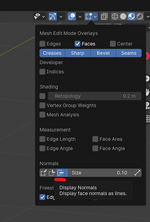
Yes, now I see normals.Also handy, in the upper right is the Mesh Edit Mode Overlays. Blender will show you the normals real time.
Do you mean "Shade Smooth" which doesn't change the number of vertices?Use mesh smoothing along with sharp edges
Maybe I could export my model to OBJ, for example, and you could try import it to your Blender?I can't open your file because I don't have Blender 4.0.
What do you mean by "accuracy"? I just thought that "accuracy" and "looks good" are the same. What is the difference?Low poly modelling is a bit of an art, and involves trade offs between accuracy and what looks good.
Yes, as @Blake says. There are some useful selection options for edges to help marking sharp edges.Do you mean "Shade Smooth" which doesn't change the number of vertices?
You might want to look at the subject of retopology- making high poly to low poly, which is the current gaming procedure.I was going to ask, if there's "low poly modelling", than there must be something like "high poly modelling", or not? How do people make high poly models for games at all? Scan real 3D objects?
This is something I can't understand. It looks for me that these transformas apply automatically. I moved, rotated and scaled an object and built a MSH file without doing anything to "apply" these transforms, namely I didn't press Ctrl+A to apply anything, but I see these transforms in game. But I noticed that after applying transforms I get new "initial" state to which I cat return pressing Alt+G (for example).This is different from applying transforms, rotations etc. which you should do if you have been moving, resizing objects etc.
It's interesting that after this I have less data in a MSH file. It's because we have less normals if I understand correctly.Shade smooth does not add geometry to your object, all it does is modify the normal value for vertices between planes (polygons) so that the shading transition of those planes is smooth.
So, "accuracy" means many details (polygons), whereas "looks good" means less polygons for optimization to better performance, but still make the model look nice. Correct?Low poly modelling is a bit of an art, and involves trade offs between accuracy and what looks good.
You mean I shuld edit (extrude) some faces of the model in Edit Mode to make it look better after smoothing? It really should help.(btw extrude is the way to go!)
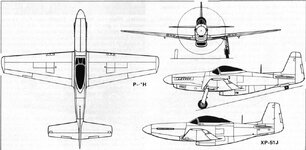
The blueprint I followed (top model in left view):I like it, looks a little italian? or maybe a Yak?
It is a bit confusing. The transforms are not applied when the mesh is created, so the transform itself is still there. That can effect some things in Blender like UV unwrapping and mapping. There are times when you do want a transform to stay, for example you have a rotated part with 'child' parts you want to treat relative to the rotated parent. (not talking animations here). In the end they are given unified coordinates so it looks like the transform was applied. So in general, unless you have a specific need to retain a transform (which is probably rare) you are better off applying them as you go.This is something I can't understand. It looks for me that these transformas apply automatically. I moved, rotated and scaled an object and built a MSH file without doing anything to "apply" these transforms, namely I didn't press Ctrl+A to apply anything, but I see these transforms in game. But I noticed that after applying transforms I get new "initial" state to which I cat return pressing Alt+G (for example).
Yes, that is correct. I need to explain a bit better. Orbiter only allows a single normal per vertex. Where there is a hard break in a model, the vertex at that break needs to be duplicated so that the polygon its associated with gets the correct shading. So, when you 'mark sharp' in Blender (to create a hard corner) that does add additional vertices to the MSH file.It's interesting that after this I have less data in a MSH file. It's because we have less normals if I understand correctly.
Better worded as 'accuracy' vs 'efficiency'. You have to decide how much accuracy you can do without while still maintaining a model that looks good for its intended purpose, and does not needlessly bog down the GPU.So, "accuracy" means many details (polygons), whereas "looks good" means less polygons for optimization to better performance, but still make the model look nice. Correct?

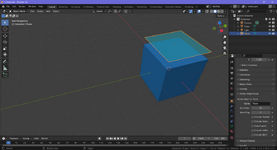
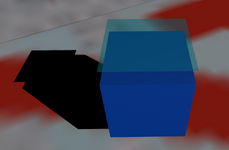
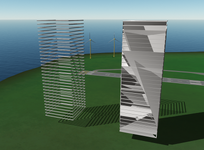
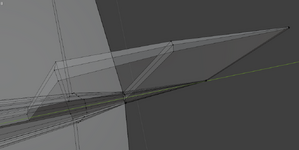
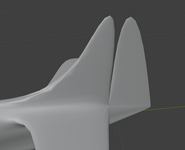
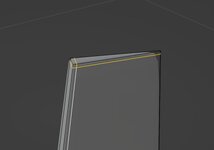
I don't understand what's the issue with my tail. It seems to have simple geometry (1st image), but some vertical gap appears after much smoothing and Subdivision Surface modifier (2nd image):
Actually I meant modelling in general, it's very easy in Blender, I did the ThunderFighter pretty much extruded from a box. You can use Loop Cut to add and slide edges/vertices where you need them.You mean I shuld edit (extrude) some faces of the model in Edit Mode to make it look better after smoothing?
I'm a little wary of modifiers, sometimes they cause more hassle than they're worth, for low poly I'd rather use Loop Cut etc. to have more control (and I'm still learning Blender).I don't understand what's the issue with my tail. It seems to have simple geometry (1st image), but some vertical gap appears after much smoothing and Subdivision Surface modifier (2nd image):
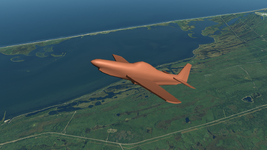
OK I was way off! It does have something P51 (it needs texturesThe blueprint I followed (top model in left view):
 )
)