Question Creating Elevation layer for Asteroid?

BrianJ

Addon Developer
Addon Developer
Joined
Apr 19, 2008
Messages
1,875
Reaction score
1,281
Points
128
Location
Code 347
Hi,
I was wondering how feasible it will be for me to make an Elevation layer for an asteroid (Ceres) from scratch.

I've grabbed a greyscale elevation map .jpg 10800 x 21600 pixels from here: https://astrogeology.usgs.gov/searc...res_Dawn_FC_HAMO_DTM_DLR_Global_60ppd_Oct2016

From their info:
Code:
The DTMs are formatted as  images where the DN values
give the height in meters above a reference sphere of 470000.0m.
(can anyone tell me what the "DN value" means?)

So what next?
I guess I need to convert the .jpg to .png, and resize to 8192 x 16384 pixels.

Then start chopping it up into 259 x 259 pixel tiles - BUT why 259 rather than 258?
259 means each tile will have 1 shared row/column of pixels on two sides, and 2 shared rows/columns on the other two sides, which doesn't seem right to me and anyway I can't figure which sides should have the 1 shared row or 2 shared rows.

Given that I figure out how to chop the global map into tiles of 259 x 259, I can then convert the .png to .elv using Face's OT3 "Treeman" - BUT as I found out before, the .png's require some kind of metadata to be included, and since I'm creating the .png's from a .jpg I suspect the metadata will be missing.

Well, I'm just trying to get my head around how to even start this.

Any hints, advice, procedures gratefully received!

Thanks,
BrianJ
 
Hi,
From their info:
Code:
The DTMs are formatted as  images where the DN values
give the height in meters above a reference sphere of 470000.0m.
(can anyone tell me what the "DN value" means?)
Maybe "digital number"? In any case, what they mean is the raw values stored in the file.

So what next?
I guess I need to convert the .jpg to .png, and resize to 8192 x 16384 pixels.
I'm surprised that the original image is in .jpg format. Doesn't the astogeology site usually also provide a lossless format (.cub or .tiff)? Then again, I think that the JPG2000 format may provide a lossless option, so maybe that's what it is. In any case, if you convert to .png, make sure you generate a 16-bit grayscale format.

Please be aware that orbiter interprets the elevation grid as the nodal values of an elevation mesh, not as the piecewise constant value over the area of a pixel. In other words, the elevation across a pixel is the bi-linear interpolation of the pixel's 4 corner nodes. So you should probably interpolate the source image to 8193 x 16385, where the leftmost column (long=-180) is equal to the rightmost column (long=+180), and the top row (lat=+90) contains identical values, same for the bottom row (lat=-90).

Then start chopping it up into 259 x 259 pixel tiles - BUT why 259 rather than 258?
259 means each tile will have 1 shared row/column of pixels on two sides, and 2 shared rows/columns on the other two sides, which doesn't seem right to me and anyway I can't figure which sides should have the 1 shared row or 2 shared rows.
That's not quite right (see comment above). Have a look at Doc/PlanetTextures.pdf, Chapter "The elevation tile file format", which should hopefully explain the tile layout, and why it's 259 x 259.

Note that my usual elevation processing pipeline is in Matlab. If it's any help, I could provide a Matlab script for a sample object (I did Titan most recently, also from source data downloaded from astrogeology). I don't know if this will be much use though if you don't have Matlab.

Given that I figure out how to chop the global map into tiles of 259 x 259, I can then convert the .png to .elv using Face's OT3 "Treeman" - BUT as I found out before, the .png's require some kind of metadata to be included, and since I'm creating the .png's from a .jpg I suspect the metadata will be missing.
What kind of metadata? If this has anything to do with georeferencing information, you could use a GDAL utility to do the conversion. This will preserve any georeferencing information (and even allows mapping between different projections, mosaicking, etc.)
 
Then start chopping it up into 259 x 259 pixel tiles - BUT why 259 rather than 258?
259 means each tile will have 1 shared row/column of pixels on two sides, and 2 shared rows/columns on the other two sides, which doesn't seem right to me and anyway I can't figure which sides should have the 1 shared row or 2 shared rows.

This comes from padding. It doesn't make sense to chop it up into 259 pixels, because you have to share the border. In addition, the "pixels" are actually data-points of the grid "around" the texture pixels. Take tic-tac-toe for example: if you draw the game-grid with borders around it, you have 4 vertical lines and 4 horizontal lines, but only 3x3 slots.

So with 256x256 pixel grids, you have 257 vertical and horizontal "data-lines", resulting in 257x257 data-points. Add the neighbor data-lines to it, and you get 259x259.

How to chop up a "slot-based" pixel picture into "line-based" now? I think it is best to shift the pixels up/left and simply double the right-most column and bottom line. It would go like this:

  1. Scale the picture to a 2:1 ratio with 2^x pixels. Yours is 2^13, meaning you have 2^(13-8=5)=32 latitude bands. 32 latitude bands is level 9 IIRC.
  2. Chop the picture into 256x256 tiles.
  3. For each tile, get the 2 up-most lines of the below latitude band neighbor and add it to the bottom. Makes a 256x258 tile.
  4. Get the 1 bottom line of the above latitude band neighbor and add it to the top. Makes a 256x259 tile.
  5. Get the 2 left-most columns of the right longitude neighbor and add it to the right, but offset the 2 256-columns one pixel from the top. Makes a 258x259 tile with blank spots in the upper and lower right corners.
  6. Get the 1 right most column of the left longitude neighbor and add it to the left, but offset the 1 256-column one pixel from the top. Makes a 259x259 tile with blank spots in all corners, 1 pixel width to the left, 2 pixel width to the right.
  7. You get the scheme. Take the corner neighbors and copy the corner pixels.
  8. Store the full 259x259 tile under the appropriate /level/lat/lon.png path.
  9. Repeat at 3.

Given that I figure out how to chop the global map into tiles of 259 x 259, I can then convert the .png to .elv using Face's OT3 "Treeman" - BUT as I found out before, the .png's require some kind of metadata to be included, and since I'm creating the .png's from a .jpg I suspect the metadata will be missing.

This is not completely true.

First, it is ele2png you are talking about, not treeman. Second, the PNGs get metadata included to store information of the elevation tile and the color conversion you don't normally get, such as conversion range, height offset and scaling, data type and various statistic data.

For import, this data is not mandatory. However, if you feed ele2png a PNG without such metadata, it assumes some things:

  • Target *.elv type should be -16.
  • Scale of values in *.elv should be 1, offset should be 0.
  • Padding of data is 1,1 (see above).
  • Range of the data encoded in PNG values is from -32768 to +32767.
  • Latitude and longitude is determined by file name.
So if you feed it a plain 16-bit grayscale image, a color with the 16-bit value 32768 (gray) is mean radius, a color 0 (black) is 32.768km below and color 65535 (white) is 32.767km above it.

Hope this explains some things,
Face
 
Last edited:
Many thanks for the replies, martins and Face!
Maybe "digital number"? In any case, what they mean is the raw values stored in the file
That figures.


I'm surprised that the original image is in .jpg format. Doesn't the astogeology site usually also provide a lossless format (.cub or .tiff)?
Yes they do, I'd better use the .tiff instead.


So you should probably interpolate the source image to 8193 x 16385, where the leftmost column (long=-180) is equal to the rightmost column (long=+180), and the top row (lat=+90) contains identical values, same for the bottom row (lat=-90).
With you there, ok.


Have a look at Doc/PlanetTextures.pdf, Chapter "The elevation tile file format", which should hopefully explain the tile layout, and why it's 259 x 259.
Have tried to get my head around the tile format in the .pdf, hope I got the basic idea, and how you can get 259 x 259 data points from from 258 x 258 rows/columns.

Note that my usual elevation processing pipeline is in Matlab. If it's any help, I could provide a Matlab script for a sample object (I did Titan most recently, also from source data downloaded from astrogeology). I don't know if this will be much use though if you don't have Matlab.
Sadly, don't have Matlab onboard, but thanks for the offer.
Is "TileEdit" utility of use in this instance? Can it generate .elv from a .bmp/.png/whatever?


What kind of metadata?
Not sure, I'm clueless about these things I fear. See Face's reply above.

How to chop up a "slot-based" pixel picture into "line-based" now? I think it is best to shift the pixels up/left and simply double the right-most column and bottom line. It would go like this.....
Ah, thank you so much for the detailed procedure!

First, it is ele2png you are talking about, not treeman.
Quite so, my error.

Hope this explains some things,
Face
Yes, many, many thanks!

Looks like I have a lot of image editing to do to get this going!

Thanks again for your help, guys.
Cheers,
Brian
 
Thanks, Face, have grabbed the new OT3.zip. Should improve the work-flow efficiency considerably. Thanks also for the heads-up re:Elv Tile Splitter.

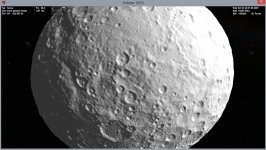
I already have some success, up to Level5 (8 tiles) now, no visible seams but some "pinching" at the poles. I'm not quite sure how to handle the "Pole" areas of the height-map when chopping into 259x259 squares - I need to add 3 rows of pixels either to top or bottom(or 1 to top and 2 to bottom, etc.) of the height map, or simply stretch the image by 3 pixels. "Simply stretch" image by 3 pixels causes more "pinching" at poles. I shall experiment and see what works best :-)

First try:
ceres_1.jpg

Many thanks for help and replies,
Brian
 
I'm not quite sure how to handle the "Pole" areas of the height-map when chopping into 259x259 squares - I need to add 3 rows of pixels either to top or bottom(or 1 to top and 2 to bottom, etc.) of the height map

Nice progress on that asteroid! Keep it up. :cheers:

For the border tiles, I'd suggest to use the opposite tiles to copy rows from, i.e. that if you have one tile in the top row and you need the upper pixel line, just copy the bottom line of the bottom row tile in the same column. If you have a border tile in the bottom row and you need the lower two pixel lines, copy them from the upper 2 lines from the top row tile in the same column.
Same goes for left and right borders.
 
Thanks, Face, have grabbed the new OT3.zip. Should improve the work-flow efficiency considerably. Thanks also for the heads-up re:Elv Tile Splitter.

I already have some success, up to Level5 (8 tiles) now, no visible seams but some "pinching" at the poles. I'm not quite sure how to handle the "Pole" areas of the height-map when chopping into 259x259 squares - I need to add 3 rows of pixels either to top or bottom(or 1 to top and 2 to bottom, etc.) of the height map, or simply stretch the image by 3 pixels. "Simply stretch" image by 3 pixels causes more "pinching" at poles. I shall experiment and see what works best :-)

First try:
View attachment 15469

Many thanks for help and replies,
Brian
Could you stop the pinching by separating the poles as discs and map separately ?
 
Could you stop the pinching by separating the poles as discs and map separately ?
You could if it was a regular "mesh", but mapping the .elv tiles to the planet surface is hard coded in Orbiter.

Can anyone help me with using "plsplit64.exe" ? (Orbiter \Utils)
I can run it and it gets all the way to listing the first .dds it is going to make and then gives me
Code:
"error: dxtex failed to execute"
then stops.

I can run DxTex.exe separately and it brings up it's GUI no problem.

Both plsplit64.exe and DxTex.exe are in my \Desktop\Orbiter\Utils folder.
Am using Windows8.1 64-bit(I think).

I'm just trying to put together a surface texture, and if I want to go beyond Level5(8 tiles) then it would be really handy if I could get plsplit64 to work.

Any hints?

Thanks,
Brian
 
Are both plsplit64.exe and dxtex.exe in the directory that contains the bitmap you are trying to split? If not, you could try to copy them there and run plsplit64 from that directory.

Did plsplit64 create a file "tmp.bmp" before it failed?
If so, can you try this from the command line:

dxtex tmp.bmp DXT1 tmp.dds

If that works, you could try

dxtex tmp.bmp DXT1 Ceres\Surf\01\000000\000000.dds

(assuming that this is the tile you want to generate). If that works as well, then something's odd, since this is exactly the command line that plsplit is trying to execute. (via _spawnl). In that case, all I can think of is that an overzealous malware checker is taking exception at one executable launching another one.
 
Hi martins,
Are both plsplit64.exe and dxtex.exe in the directory that contains the bitmap you are trying to split?
Yes, plsplit64.exe + DxTex.exe + Ceres.bmp are all in my Orbiter\Utils folder.

Did plsplit64 create a file "tmp.bmp" before it failed?
Yes it did, but in a different directory location.

Full path to my Orbiter\Utils folder is
C:\Users\Brian\Desktop\Orbit2016A\Utils

The tmp.bmp is created in
C:\Users\Brian

So I'm going to try doing everything in C:\Users\Brian and see what happens.

In that case, all I can think of is that an overzealous malware checker is taking exception at one executable launching another one.
That was my second thought. Both plsplit64.exe and DxTex.exe were "blocked" on my computer. I unblocked them, but still no go.

If so, can you try this from the command line:

dxtex tmp.bmp DXT1 tmp.dds

If that works, you could try

dxtex tmp.bmp DXT1 Ceres\Surf\01\000000\000000.dds
I'm going to transfer everything to my C:\Users\Brian folder and try again, if still no good I'll confirm if DxTex.exe is working as per your post.
Will report back asap.

Many thanks for your help.
Cheers,
Brian
 
It's odd that the tmp.bmp intermediary file is created in your home directory. It looks like the working directory for plsplit64 got messed up.

One question: are you launching plsplit64 by double-clicking on it in file explorer? If so, try to run it instead from a command prompt, after changing to the correct directory.
 
I'm running plsplit64 from the command prompt window.
Haven't had time to switch folders and try again yet, will do asap.
Thanks,
Brian

---------- Post added at 03:57 PM ---------- Previous post was at 03:24 PM ----------

Yay! I moved plsplit64 + DxTex + Ceres.bmp to C:\Users\Brian folder and it works :-)
Many thanks,
Brian
 
Good to hear that it works now. I am still confused as to why the intermediate bmp file ended up in your home directory. I wonder if there could be an environment variable or other mechanism to instruct _spawnl to change the working directory for the executable it spawns.

But if that was the case, then plsplit64 would probably also not have found the input bitmap (unless you specified the full absolute path for that).

Any Windows experts around who could shed light on this mystery? Did anybody else see this problem?
 
Good to hear that it works now. I am still confused as to why the intermediate bmp file ended up in your home directory. I wonder if there could be an environment variable or other mechanism to instruct _spawnl to change the working directory for the executable it spawns.

But if that was the case, then plsplit64 would probably also not have found the input bitmap (unless you specified the full absolute path for that).

Any Windows experts around who could shed light on this mystery? Did anybody else see this problem?

Perhaps it has something to do with folder permissions of the executing user? Never used _spawnl myself (that I remember, anyway), normally I use CreateProcess(). :shrug:
 
Hi,
But if that was the case, then plsplit64 would probably also not have found the input bitmap (unless you specified the full absolute path for that).
Yup, I did specify the full path to the .bmp.

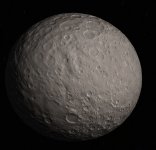
OK, with the help and utilities from martins and Face, I think I'm just about there. Level5 elevation maps and Level7 surface texture. Now that I can adjust the elevation scale (using the metadata files for ele2png) it looks much better and general body dimensions are correct.
ceres_tn1.jpg

Should I package the .elv and .dds tiles into their respective .tree formats? Is that more efficient for Orbiter?

Thanks again,
Brian
 
Looking good!

The tree format is probably no more efficient regarding performance, but it has a smaller disk footprint and makes it easier to distribute.
 
Great progress importing that DTM data.

Just a quick reminder that there are similar datasets on the USGS site for Mercury, Venus, Pluto and Charon ;)
 
Last edited:
Just a quick reminder that there are similar datasets on the USGS site for Mercury, Venus, Pluto and Charon ;)
I'll be needing "Elv Tile Splitter" or similar square-chopping automation, if I want to get into that!

I put what I got for Ceres so far, on OH:
https://www.orbithangar.com/searchid.php?ID=7132
It didn't get it's own thread for some reason, so might as well use this one for bug reports, comments, etc.
 
Back
Top