Project Blender Mesh Tools add-on

I made a test (Blender 4.0.2 with the previous version of the tool) in Orbiter 2024. It's related to this:

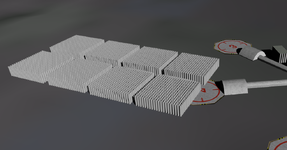
I have 8 identical mesh groups. Every group has identical 400 parallelepipeds. Every parallelepiped has 8 vertices, 12 edges, 6 faces (just ordinary parallelepiped):

View attachment 41786

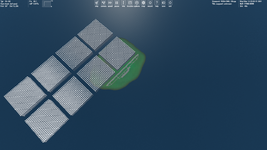
There're issues in game, some parallelepipeds aren't displayed:

View attachment 41787

Blender says that there're totally 38400 triangles. It's just twice the number of faces (since every face consists of two triangles), namely 38400=2*19200. Maybe there's a restriction for triangles in a MSH file, it might be like 32768 triangles, I'm not sure, but this assumption corresponds to the number of visible parallelepiped on the 2nd picture.

But I have MSH files that contains much more, than 32768 triangles, and they don't demonstate such the issues, so I don't know what the problem is.

I attach BLEND and MSH file.
The Vertex count can differ when building the mesh.

I'm not sure but every face is splitted and has its own vertices. @Blake knows better.
 
And maybe it depends on "Auto Smooth" option (count of normals)...
Auto smooth shouldn't be the problem. My tip would be to split your mesh into more than 8 groups. Our meshes for NASSP VC exceed the number of vertices and triangles by far than your city mesh and we have no problems.
 
Auto smooth shouldn't be the problem.
I meant that the "Auto Smooth" and "Flat" option make different count of normals for vertices (I saw it earlier).
My tip would be to split your mesh into more than 8 groups.
I splitted every mesh group into four parts (every part hasn't many vertices/faces, etc), but the issue remains. That's pretty strange. I have no ideas why the mesh (I attach it) doesn't look correct in game.
 

Attachments

1737247374016.png

I tested this using Blender 4.0 and 4.3. Both give me the results above. I'm not sure how to explain what you are seeing, but it seems to work for me.

Using the first zip file you posted.
 
I don't know how, but I tried again the MSH file I attached above and it works now:

Без імені.png

Nevertheless, it will be fine to know if there're any restrictions for a MSH file.

ADDED: My second file works right too now.
 
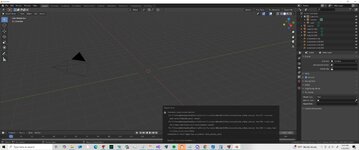
So I am trying to scale a mesh to a planet/moon size. I tried to import the mesh into blender. using 2.83.0
 

Attachments

  • blenderimport.jpg
    blenderimport.jpg
    57 KB · Views: 9
Your screenshot is blurry, the text is unreadable. By the way, scaling an object the size of a moon, I don't know if Blender doesn't reach its limits when it comes to handling objects of this size.
 
Thanks. So what do people use for building moons?
 

Attachments

  • blenderimport1.jpg
    blenderimport1.jpg
    40.2 KB · Views: 7
I am using Blake's toolset v2.2.0 with Blender v4.3.2. I can successfully BUILD *.msh files and get them into Orbiter (Orbiter2016 and Orbiter2024). However, when I attempt to IMPORT *.msh files I sometimes (not always) get the following error message:

BlenderError.jpg

line 225 (referenced above) in the Python script says: import_tools.import_mesh(config, path)

and

line 440 says : up = [pp.lower() for pp in p.parts]

I'm not sure what any of this means, or how to resolve the issue(s). Can anyone here offer guidance?

By the way, a colossal THANKS to Blake and anyone else connected with developing these tools.
 
I am using Blake's toolset v2.2.0 with Blender v4.3.2. I can successfully BUILD *.msh files and get them into Orbiter (Orbiter2016 and Orbiter2024). However, when I attempt to IMPORT *.msh files I sometimes (not always) get the following error message:

View attachment 42257

line 225 (referenced above) in the Python script says: import_tools.import_mesh(config, path)

and

line 440 says : up = [pp.lower() for pp in p.parts]

I'm not sure what any of this means, or how to resolve the issue(s). Can anyone here offer guidance?

By the way, a colossal THANKS to Blake and anyone else connected with developing these tools.
It assumes you are importing from an orbiter file structure. It does this so it can find the textures. It could probably use a better error message there. So make sure the .msh file you are importing is in the 'meshes' folder under 'Orbiter'. Although I don't think the name of 'Orbiter' is important. But the name for the 'meshes' folder is.
 
Just wanted to clarify if it's normal thing or I do something wrong. So, I build a mesh and see the lines like these in the textures section of the MSH file:
Code:
\\PA-38-112\Fuselage.dds\
\\PA-38-112\Interior.dds\
Are the settings that allow to get this?:
Code:
PA-38-112\Fuselage.dds
PA-38-112\Interior.dds
Since now I must delete these backslashes manually.
 
Just wanted to clarify if it's normal thing or I do something wrong. So, I build a mesh and see the lines like these in the textures section of the MSH file:
Code:
\\PA-38-112\Fuselage.dds\
\\PA-38-112\Interior.dds\
Are the settings that allow to get this?:
Code:
PA-38-112\Fuselage.dds
PA-38-112\Interior.dds
Since now I must delete these backslashes manually.
What OS are running Blender under? Window, Mac?
What version of the plugin are you running? Older versions have had issues with this path.

A deeper dive if you want...

When you reference a texture file in Blender, the plugin assumes it will be in a folder structure that mimics Orbiters's folder structure, and that it will be in a 'Textures' (or Textures2) folder or sub folder under that. It will then attempt to pick off just the filename. So if your .dds files is in a path like: 'C:\Orbiter\Textures\Fuselage.dds' it will return just 'Fuselage.dds'. The MSH file assumes those files are in a 'Textures' folder.

Here's how you can find out where Blender thinks your texture file is (if you want to get your hands dirty with a little python):

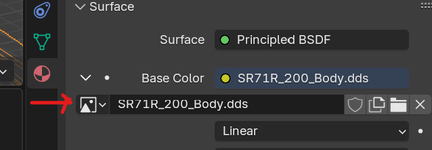
Open the 'Material' tab in Blender and look for where the texture file is selected:
1752346235560.png
Right click on that and select 'Copy full data path'.
Now, open a 'Scripting' window. You should have a Scripting workspace that will have an interactive Python window (it will have the >>> prompt).
Click on the Python window and press Ctrl-V. You should see something like:
bpy.data.images["SR71R_200_Body.dds"].name
Replace the .name with .filepath (so, bpy.data.images["SR71R_200_Body.dds"].filepath in my case).
This will print out the path the plugin is trying to parse to find the texture file. In my case: '//..\\Orbiter\\Textures\\SR71R_200_Body.dds'

The plugin will parse that string as: 'SR71R_200_Body.dds' for the MSH file.
 
Blender 4.0.2 on WIndows 10.
Version of your plugin: 2.1.8.

Thanks a lot, I think now I understood how the plugin thinks.
 
Hi guys,
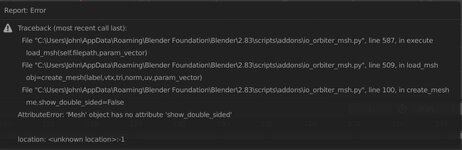
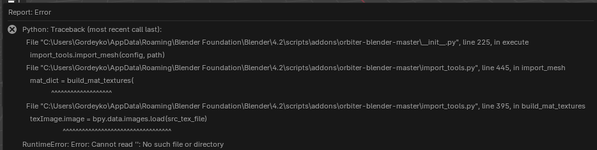
Does anaybody know what's causing that issue when trying to import mesh file (see attached)? Tried on blender 4.2.14 as well as 4.5.3. The result is the same.
I got success in importing the default ISS mesh, but not the default shuttle..
TIA.
 

Attachments

  • Blender error.png
    Blender error.png
    35.9 KB · Views: 7
Hi guys,
Does anaybody know what's causing that issue when trying to import mesh file (see attached)? Tried on blender 4.2.14 as well as 4.5.3. The result is the same.
I got success in importing the default ISS mesh, but not the default shuttle..
TIA.
By default shuttle, I assume you mean 'Atlantis\Atlantis.msh'?

Errors like this generally mean Orbiter is installed in some odd path that prevented the script from walking from the Mesh folder to the Textures folder. That would generally break importing for all meshes however. You can also turn on 'Verbose' when importing and that may give more information.
 
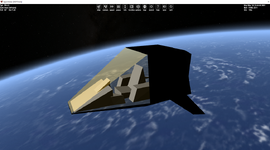
Hello, I'm sorry to say this but I'm running into normals issues again when exporting to .msh, here's what I get in Orbiter 2024 :

1763411209491.png

D3D7 or D3D9 client give the same result.

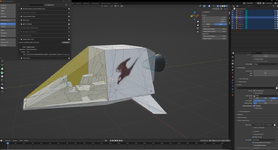
I am using Blender 4.2.15 LTS, as instructed in the tools GitHub.

1763411528730.png

The mesh I'm using is very simple, and I feel like I tried everything (recalculate normals outside...). I'm certainly missing something, but what ?

Thanks for your help.
 

Attachments

I think this is an alpha transparency issue, not normals. Try setting the Sort Order for the glass canopy to a value higher then 50, higher then anything that should render before it, like the interior.

Its in the Object tab in Blender, in the Orbiter Object Panel.
 
Back
Top