Hardware A Basic Guide to Building a PC

garyw

O-F Administrator
Administrator
Moderator
Addon Developer
Tutorial Publisher
Donator
Joined
May 14, 2008
Messages
10,547
Reaction score
347
Points
158
Location
East Sussex
Website
blog.gdwnet.com
Preferred Pronouns
He/Him
As a lot of people seem to have summer projects to build a PC and have lots of questions around I thought I'd put together a quick quide to building a PC as I've had requests to build a few.

Just to add - I have done this many, many times. If you are in doubt seek expert assistance. PC's use power and so can cause an eletric shock, they are also not cheap when processors fry so if you follow this guide you do so at your own risk!

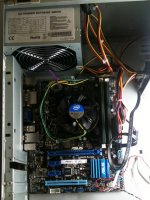
The PC I'm building for this little tutorial is an Intel i3 PC. The set is part of a bundle that comes with motherboard, processor and RAM. Graphics are onboard. The case I'm using is an older one that I've removed the existing motherboard from.

If you have any questions as I go through things then please ask! The tutorial will be in several parts.

Part One - The tools:

First thing you need is a nice clear space where you can put things without having them moved by people or cats. Also somewhere that you have plenty of light and somewhere CLEAN. I can't empahsis that enough. Whatever workspace you pick must be clean otherwise you'll lose parts and thats the most frustrating part of a build.

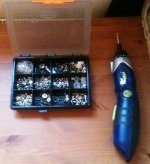
You'll also need a screwdriver and some screws. I favour an electric screwdriver for the most part:
IMG_1082.jpg

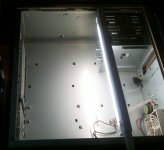
As I said above, the case I am using is an older one that I've cleared out. I've also got a light strip that helps provide a lot of artificial light which really helps when working on the more fiddly elements:
IMG_1081.jpg

So, you've got a case, light and a screwdriver. You are now ready to build a PC. :lol:

Part Two: The Power Supply & Back template

There are many schools of thought around power supplies. The simple answer is 'get one that has more power than you need but not so much power that it costs more than it needs to'. Remember that the quoted wattage on a PSU is best case scenario. In reality you'll never get that so always shave 50watts off quoted specs and you'll give yourself a decent margin. There are various online tools for working out what you'll need.

Now this PC I'm building won't be used for games hence the onboard graphics rather than a third party graphics card. The PSU will need to power the motherboard, the CPU and fans and some hard drives so it doesn't need to be huge. My local maplin were doing a deal so I got a 680Watt PSU. That is more than enough for this machine.
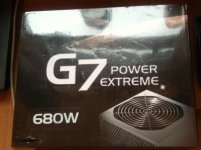
IMG_1084.jpg

Unbox the power supply and slot it into the case - make sure all the fans point OUTWARD.
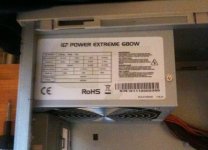
IMG_1088.jpg

Next just screw it into the case. You'll probably need four screws:
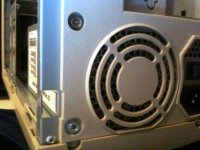
IMG_1091.jpg

Done, nice and easy. At this point I plug in the power but do NOT turn it on. As the power lead has an EARTH connection it just helps to make sure that I'm not going to cause any damage due to ESD.

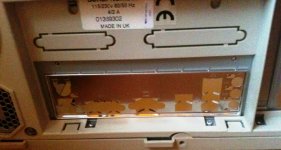
Now, one of the fiddly bits - the back template. This is just a small aluminum back piece that allows all the connections to face outward and prevents gaps from allowing dust in. You don't have to install it but it looks neat and as I said it stops dust from getting it. In the box it will look like this:
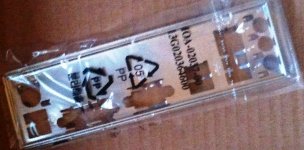
IMG_1098.jpg

Remove it from the wrapping and snap it into place. It might need a little bit of force and make sure it's the right way up!!
IMG_1101.jpg

Part Three - The Motherboard

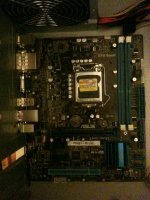
Installing the motherboard is easy. It just pops into the case as is screwed into place. Make sure you are earthed when you do it. You might find that there is some resistance from the back template so just be careful with that and push it into place.
IMG_1103.jpg
 
Part Four - The processor

This is the bit I'm always nervous about. The processor is the brains of the PC. If this goes wrong it's an expensive mistake. Absolutely critical to this part are two things - the fan and heat transfer paste.

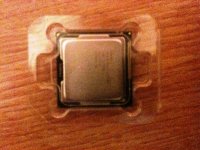
The processor that comes with this machine looks like this:

IMG_1105.jpg

It's not too clear in the image but on the top left of the processor is a golden triangle. This is a very important mark as it will align with the processor slot on the motherboard. It's important to check the motherboard manual to find out how the processor and heat sink should be assembled. Take this part slowly and understand it before moving on.

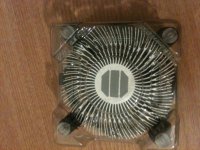
The underside of the fan looks like this - the three grey lines are thermal heat transfer paste and helps heat conduct away from the processor.

IMG_1106.jpg

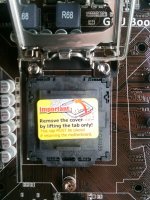
The slot for the processor has a little metal arm that comes up and this cover has to be removed:

IMG_1107.jpg

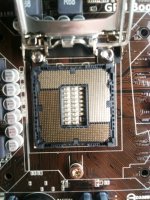
This is what it looks like under the cover:

IMG_1108.jpg

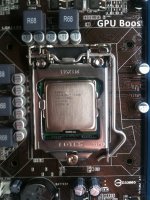
Put the processor in CAREFULLY. No force should be required. The triangle MUST be aligned as per the manual and it should very simply slot into place.
You can see the triangle in the bottom LEFT hand corner of this image.


IMG_1109.jpg
Now the fan needs to go on to of it all. Normally I'd put a little bit of thermal transfer compound on there but as the underside of the heat sink has it already I won't bother.

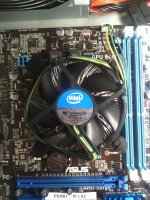
It is absolutely vital that the wire for the fan is plugged in. You can see it to the top right of this image.
Do not walk away from the PC before doing this. If you forget you WILL fry the processor. It is not optional!

IMG_1110.jpg
 
Part Five - The Ram

With this bundle pack I got the RAM with it so it was a guarentee it would be compatible. Motherboard manuals will also describe the type of RAM thats required and it's always a good idea to keep RAM matched and not used mixed sets from different manufacturers.

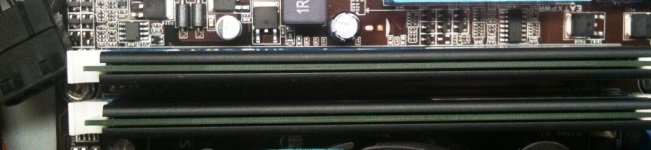
Installing the ram is simply a matter of opening the little beige clips and slotting the RAM in. Check that both the clips have closed and gripped the ram solidly:

IMG_1111.jpg

Part Six - Power

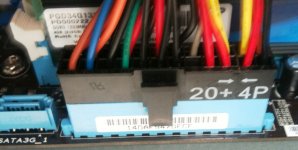
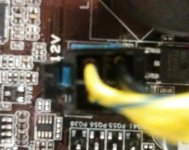
This motherboard has three connections for power. It's EXTATX so thats two for the main part of the board and another 12V connection near the PSU.

They go in like this - the first is actually two power connections into one slot. The slots and connectors uses guides so they cannot be installed the wrong way - again, they might need a little force to get them fully in but they should go easy enough. Do not not use too much force.

IMG_1114.jpg
IMG_1115.jpg

Part Seven - Case connections

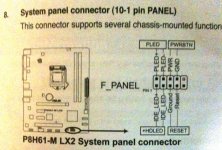
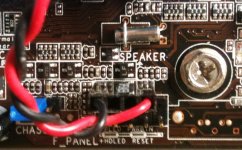
Every case has several pins to plug onto the motherboard. This allows signals from the power switch, reset, switch etc through to the motherboard. One often overlooked yet important connection is that of the onboard speaker. Ensure that everything plus into the right places. This is yet another thing that varies from board to board so CHECK.

IMG_1119.jpg

IMG_1116.jpg

Part Eight - Sanity check power on

At this point the machine can be powered on and tested. Double check that the CPU fan has nothing obstructing it and that its plugged in.

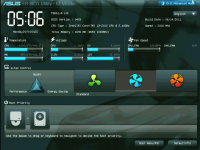
Power the machine on and hope that you get a single beep......

and here we go!

ScreenShot231.png

Great, everything works. All that needs to happen now is that a Hard drive (or two or three) need to be installed and if required a DVD/CD-Rom. For this machine I won't be installing a DVD or CD-Rom drive or a floppy drive.

Part Nine - The harddrive(s)

This machine will only have a single harddrive. If I was building something like a games machine I'd use two in RAID 1 configuration. That way, if a hard drive fails I'd still be able to boot.

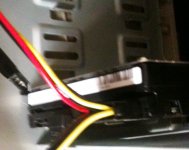
There are three connectors on the back of the hard drive. power, data, power. You only need one power connector so as this PSU supports the older style of power connector I'll plug in the SATA cable (middle) and power to the right:
IMG_1120.jpg
The Hard drive needs to be secured into the slot with two screws.

And that's pretty much it. This is how it looks now. I still need to tidy up the cabling a little and put blanking plates on the front but the PC build is pretty much done. Total time? About 90 minutes.

IMG_1121.jpg
 
Good guide Gary. One thing that I'd mention at the start of the article is to talk about static. As you'll know, static can very quickly and silentle fry your RAM or CPU if handled improperly and if you don't mention it, then people will just pick them up the easiest way they can and possibly fry the chips.

Some people go overboard for home computers (demanding antistatic strips which is a fair point, but overkill if you're going to build just one machine). My methodology in this instance is always:

Remove any polyester/wool clothing that can cause static before doing anything (normally just removing a jumper) and taking off your shoes.
Leave the computer plugged in. Yes, this sounds mad, but if you have it turned off at the wall (UK only has this ability I think) AND have the rocker switch on the back of the PSU to off, the power is off but the PC is still grounded. Failing that, you can just hold onto it and something that's grounded (like a radiator) for a second and ground everything.

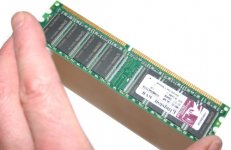
Then, whenever you are about to open a package (eg RAM), re-ground yourself on the PC/radiator to offload any charge that's built up whilst you've been building. Then, when you begin to handle the components, ALWAYS hold them by the corners. This prevents you directly zapping any electrical conductors (pins etc) and insulates you via the plastic circuit board (see attached).

Gary, feel free to incorporate this into your guide and then remove this post.
 

Attachments

  • desktopramtouching.jpg
    desktopramtouching.jpg
    88 KB · Views: 4
Oh, one last thing. When it's all installed, cable-tie a load of the internal cables together and out of the way to keep it neat and also improve airflow. :-)
 
Absolutely. Take a look at the last pic and you'll see a purple cable tie on the CPU fan wire. Part of the tidy up is to add a few more to secure the cables as one of the worst things is to get a wire caught up into the fan.
 
About static, also pay attention to it when handling the GPU, I made the experience that the GPU is almost as sensitive to static, as RAM.

And when cable-tying the connections, don't be too excessive. It ruins your day badly when you need to repair or upgrade your computer. Just move the cables into neat bundles and away from the main airflow, don't tie them to parts that vibrate a lot, like the usually pretty attractive structure for the hard drives. This otherwise ruins your acoustics.

I have already seen PCs with more cable-ties than cables, that is a bit excessive.
 
Last edited:
See, I knew that building a computer was like surgery, with all that static and that careful handling you have to do.
 
See, I knew that building a computer was like surgery, with all that static and that careful handling you have to do.

Nope. plug a power cable in and Earth yourself. You don't need to scrub up, wear special outfits or have a nurse to wipe your forehead although the nurse bit would be nice.

There really is nothing to building a PC.
 
I recommend a LED headlamp as tool...when trying to fit a modern CPU cooler into an old chassis, it was really helpful to have light where you had been looking.
 
I recommend a first aid kit nearby. Often parts of the case are sharp and sometimes you need to break out a bit of metal to make room for a PCI sound, net or other cards. Minor cuts can occur.


Pipcard said:
See, I knew that building a computer was like surgery, with all that static and that careful handling you have to do.

If that's what it seems to you, than you know very little about building a computer and hardware in general. Anyone who's ever opened up a computer or took apart an old one will know that pretty much everything fits like LEGOs...
 
See, I knew that building a computer was like surgery, with all that static and that careful handling you have to do.

Once upon a time you had to wear an antistatic wriststrap and be very careful when putting SIMM RAM modules into place, and the like. And before that, soldering irons and other funny stuff were handy more often than not.

Nowadays, components are far more sturdy and you can slid stuff into a motherboard with very little effort. Can't even plug them the wrong way or connect the wrong cables. Cases are also larger and bays accept drives from the front, so no more sweating trying to put that darn 3.5" HD into place without breaking the graphics board in two.

Not like surgery at all. And with the only tool required being a multitool or one of those Victorinox cybertool knives, there won't be any blood unless you pry the main blade open by accident and forget how to fold it back.
 
Just about anybody can build a PC with a couple hours of reading and Youtube tutorials. I gutted my mobo a couple weeks ago for an i5 upgrade and the single hardest part was getting the heat sink on to the CPU. Everything else is just plug and play.

Hell, I didn't even have to format the hard drive, Windows 7 just detected the new hardware and reactivated online. Do your research and take your time and it's nearly impossible to screw up.
 
Nowadays, components are far more sturdy and you can slid stuff into a motherboard with very little effort.

As you'll know, static can very quickly and silentle fry your RAM or CPU if handled improperly and if you don't mention it, then people will just pick them up the easiest way they can and possibly fry the chips.
But I thought they were sturdy?
 
RAM components are sturdy. They have all sorts of protection and error correction for both heat and ESD but it's not worth taking risks when building a PC. Earth yourself before playing with them.

It's the equivalent of not looking when crossing a quiet road. You know the chances of traffic are low but you'll look anyway - just in case.

PC's are sturdy but earth yourself anyway - just in case.

Also make sure you hold them properly - See agentgonzos picture above - hold them at the sides - don't touch the metal clips as thats a sure way of inducing damage from a static discharge.
 
I recommend a first aid kit nearby. Often parts of the case are sharp and sometimes you need to break out a bit of metal to make room for a PCI sound, net or other cards. Minor cuts can occur.

So true. You have to watch especially in cheaper cases as they tend to have sharper edges. Also replacing parts tends to cause more injuries than assembly.

As for the grounding: I always ground myself since I fried 2 SIMM modules back in 1996. It's better be overcautious than damage perfectly good equipment.
 
Thanks for the great tutorial Gary. I think I'll try assembling my own PC if I find need/want for a desktop this fall. I'm going off to college and getting $1500 cash "for a laptop" but I already have a laptop more than capable of practical work.
Just one thing: When you get the chance, if you could fix the typos in the tutorial, I would feel much more confident in trying it out. :lol:
 
All this is very good information.

Regarding static.. it cannot be emphasized enough to take good static precautions. There was a time last year, I *think* I *might* have mis-handled some ram, and sure enough, a few months later it had random bit errors in a certain location/address. I checked my maintenance log and found the suspect module was the one noted.

The problem had presented itself in filing system operations. Large files being copied would sometimes get corrupted. And when it came time to back-up the system, the imaging program would report disk errors, but Check Disk would only sometimes correct a seemingly innocuous error in the $MFT, if that.

Extensive use of Memtest86 verified the problem. I changed the module and everything was fine. No more corrupted files. Memtest86 could now run for hours without reporting a failure. So on and so forth.

The point being is that static, like overclocking (but by different mechanisms) can cause latent damage that takes its time "eroding" the circuit pathways. The problem can show up months or years later and can be very insidious. Worse than spyware and malware. At least with nefarious viruses you kinda see something going obviously wrong and the ohh-:censored: moment is quite recognizable. You can take definitive action clearly and concisely. But with subtle static damage the problem creeps in on you slowly. You may not observe anything other then that there are unexplained CTD's happening or similar "strange" things going on at random intervals.
 
Last edited:
Regarding screwdrivers - magnetic bits can be quite helpful, because holding those screws in place within the tight confines of some motherboards can become awkward... if not potentially damaging to connectors.
 
I've done a little of this myself -- built a few PCs from scratch and worked on several others. I'm far from being an expert; I'm a guy who knows a few things and who has several friends who know less than I do, so I end up being the "go to" guy. Anyway, my comments, for what they're worth:

Part Two: The Power Supply & Back template
Part Three - The Motherboard
Part Four - The processor
Part Five - The Ram

I personally find it easier to take it in this order:

1) install CPU, CPU fan, and RAM into motherboard.
2) install the motherboard + those things, as one unit, into the case.
3) install the power supply into the case.

There's nothing wrong with doing it either way (it all ends up being hooked together the same way in the end), but by doing it in this order I can easily view the CPU from all sides while installing it into the motherboard (easier to see the pins that way), I don't have to hold the power supply cables out of the way while installing the motherboard into the case, etc.

Some people go overboard for home computers (demanding antistatic strips which is a fair point, but overkill if you're going to build just one machine).

And I'm one of those people that goes overboard on this issue, with no apologies or regrets. I've got an anti-static pad on my workbench that the PC I'm building sits on top of. But I've also took an old, blown power supply and converted it to a permanent ground bus that I can securely hook things to. And when I hook myself and a PC to ground, I use a three wire system -- wire #1 goes from the ground bus to the PC, #2 goes from the PC to me, and #3 goes from me back to the bus. That way I get one failure "for free"; if any single wire or connection is bad, everything is still grounded.
 
Back
Top