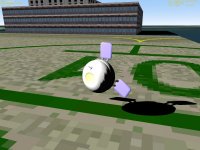
Problem Inverted material lighting effects

Countdown84, you don't need to go to all the trouble of using Mesh Wizard. Try this instead.

Open the orbiter_export.py file in a text editor. Change line 570 from:
Code:
outputFile.write(str(self.Normal[0]) + ' ')
to:
Code:
outputFile.write(str(self.Normal[0] * -1) + ' ')
Voilà, no more bad normals.

Also, make sure that before you export from Blender, you apply any rotation (select everything, press CTRL + A, pick "Rotation to ObData" in the menu).

I haven't been here in a while, otherwise I'd have posted this sooner.
 
Thank you, George, I had already found that fix for the export script.

I was finally able to solve the vertex normal / inverted lighting problems by simply re-importing the orbiter mesh into Blender, then exporting it again. Apparently somewhere in this process the normals get recalculated. However, after I re-import the mesh I have to remove thousands of duplicate vertices that seem to get created either during export or re-import. These are not present in the blender model.

After many hours of fooling around, I have a mesh that's getting close. The problem is, the lighting effects look really bad, and the materials seem to have gotten very washed out and odd-behaving. I'm attaching a .zip containing a mesh, texture, config file, and a scenario file that has the "Carina 2" attached to the RMS of the default Atlantis, and also one landed at the Cape. If y'all feel like it, test it out and let me know if you have any ideas about how to make it look less crappy.

The mesh file also seems very large in comparison to typical orbiter meshes. I don't believe it's a very high-poly mesh and I've removed all the duplicate vertices that I can, but I'd be interested in comments on the optimization side as well.

thanks a lot!
 

Attachments

  • Carina2.zip
    Carina2.zip
    461.3 KB · Views: 2
  • Carina2 Preview.jpg
    Carina2 Preview.jpg
    62.5 KB · Views: 19
Check this version.
 
Last edited:
The mesh file also seems very large in comparison to typical orbiter meshes. I don't believe it's a very high-poly mesh and I've removed all the duplicate vertices that I can, but I'd be interested in comments on the optimization side as well.
thanks a lot!
Taking a quick look at your mesh, you have a HUGE number of polys for such a small thing. There is no need to have so many to achieve the same level of detail. You will find that you can get a smooth cylinder with only 20 sides, as the graphics engine will smooth that out, if the smooth angle is set correctly. In short, for a spheroid, which your mesh basically is, you don't need so many polys to get the same effect.

You could probably use about 25% of the polys you have. I did a quick and crude whip round with the reduce tool AC3D has and got it down to under 4k polys with no visual loss. It's a nice little mesh btw.

IMHO, it's important, especially with a program like orbiter, to be efficient and minimal with your poly count, as the engine is not great and people often use lower spec machines. Whatsmore, with a simpler mesh you are less likely to encounter visual anomolies and such.

my 2c
 
Last edited:
That looks a LOT better, liber! Can you please explain what you did?

Also, what is the advantage of turning this into a SC3 vessel?

For satelite maybe classic config file is better,just custom to SC3.
Convert to 3ds,import into Sketch Up and curved face export into dxf to gain smoother face and reconvert to 3ds with one older program,than assambly part into anim8tor and export to mesh.
 
Thank you all VERY much for your helpful comments. I've re-done the high-poly surfaces and gotten the poly count much lower, but I still can't get it to export to Orbiter properly. I'm at a complete loss here. Let me explain what I've found:

-When I first export my blender mesh to Orbiter using blorbiter's export scripts, I get the inverted lighting effects shown in post #1
-I can use Meshwizard to generate normals and fix the lighting problem, but it destroys all the smoothing groups
-I can re-import the mesh into blender using the import script in order to reapply the smoothing
-When I export the re-imported mesh, the materials and lighting effects are "crappified" - I don't know how to explain precisely but there is clearly a loss of quality.

As an alternative, I tried exporting from Blender to .3ds then .3ds to .msh using the 3DS2MSH tool. This seems to work however every mesh group except for one is INVISIBLE! I can tell the mesh is there because I see it in Mesh Wizard and I see the shadow on the ground. Flipping the visible side using Mesh Wizard did not help.

One other odd thing I've noticed - when I re-import the mesh after exporting it, ALL vertices are duplicated. It seems that the export script is generating two copies of every Vertex. Has anyone else experienced this? Seems like a major issue from an optimization / performance standpoint. As further evidence, I also noticed that when I run the "optimize mesh" command in MeshWizard, many duplicate vertices are removed, even though I made sure to remove every duplicate prior to export from Blender.
 
I never used Blender so don't know how it's work.
If you having some part invisible it could be that your faces are not fliped proper.
Maybe export part to 3DS than import to anim8tor and there add material and flip it if needed.
There's a script to export from anim8tor to mesh.
 
My experience shows that Anim8or script works fine, but I noticed that sometimes materials and textures are not properly assigned to the right groups. I noticed it when I exported my last ShuttlePB mesh.
 
SOLVED!

PROBLEM SOLVED!

Let this be a warning to ther Blender users - if you rotate any meshgroups in OBJECT mode, the vertex normals are not updated appropriately - leading to the strange lighting issues that I've been wrestling with. The solution is to always make sure you are in EDIT mode before rotating / mirroring any mesh groups.

If you follow this rule, my limited experience says you can use the export script without a problem.

If you have this lighting problem on an existing mesh, you can solve it by painstakingly rotating each group in OBJECT mode to get the vertex normals pointing in the right direction, then re-rotate it into the proper position using EDIT mode.

This is under Blender 2.49 x64.

The blocky lighting I was observing was a result of my material settings; resetting to default solved that problem.

Thanks again to everyone for the thoughtful comments and advice!
 

Attachments

  • 09.08.12 22-48-22 v.jpg
    09.08.12 22-48-22 v.jpg
    30.2 KB · Views: 20
  • 09.08.12 22-48-48 v.jpg
    09.08.12 22-48-48 v.jpg
    30.5 KB · Views: 20
Great news mate, glad you found the solution. The mesh looks nice. I'm surprised though that the main body still shows some angles, I would have expected it to be round based on the polys I can make out from those pics. The smooth angle should blend that out...
 
Let this be a warning to ther Blender users - if you rotate any meshgroups in OBJECT mode, the vertex normals are not updated appropriately - leading to the strange lighting issues that I've been wrestling with. The solution is to always make sure you are in EDIT mode before rotating / mirroring any mesh groups.

Yeah, that's why I suggested applying the object rotation to the ObData before exporting--otherwise the normals don't get updated. I probably should have explained that more clearly. You shouldn't need to undo and redo the rotation in different modes to fix it, just use CTRL+A (in object mode).

Anyway, I'm glad you solved the problem.
 
Back
Top